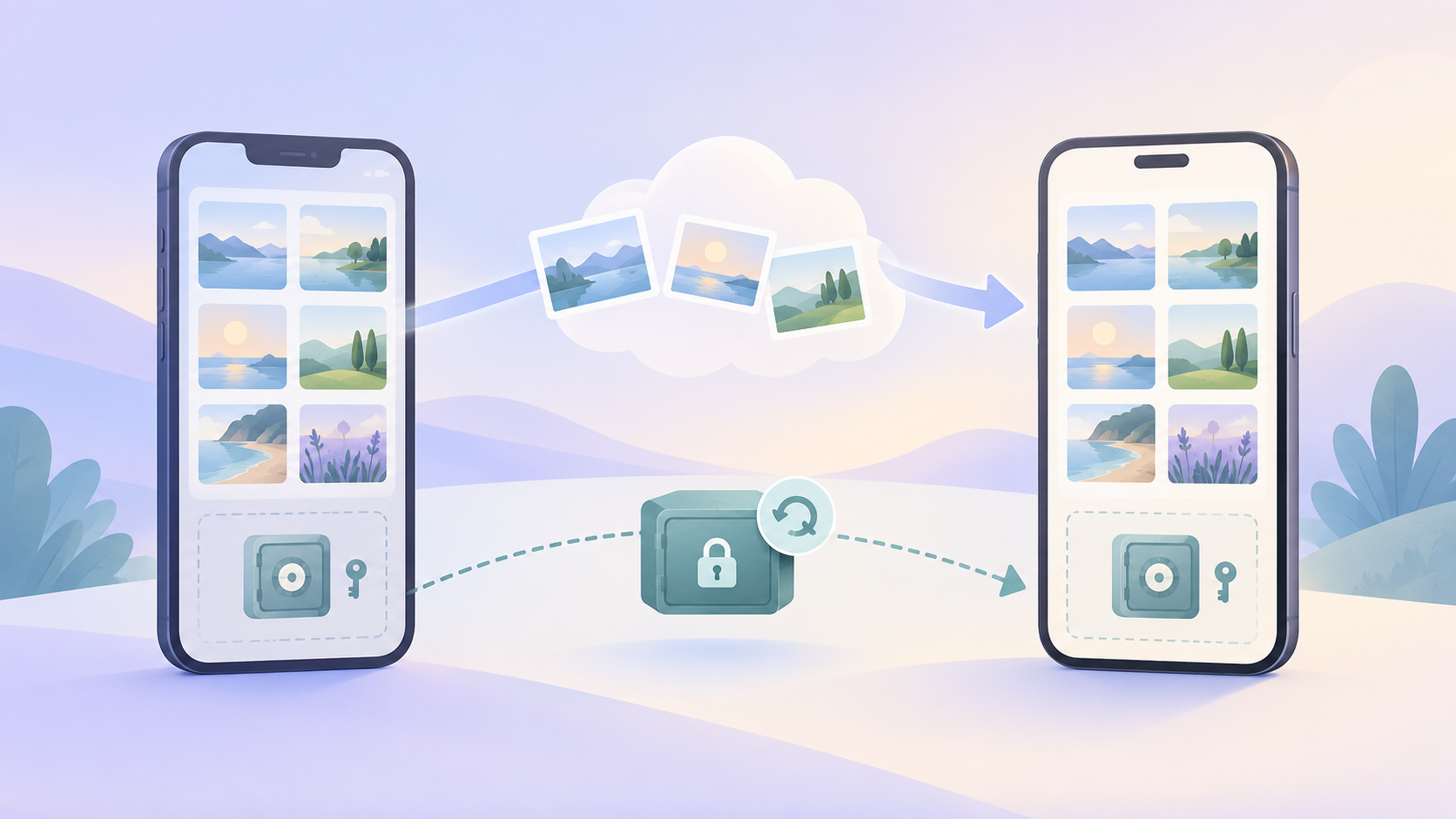
The short answer: it depends on where the photos are hidden
The answer depends on where the photos are hidden. A photo hidden in the system Photos app and a photo kept in a vault app are handled by different mechanisms. They transfer differently.
Two meanings of hidden photos
The first meaning is the Hidden album in the Photos app. It is part of your Apple photo library. The photos are still in the library. They are only left out of the main grid.
The second meaning is a vault app. A vault stores files in its own encrypted container, separate from the Photos library. Weave Vault is one example.
What this article covers
For the Hidden album, the behaviour belongs to Apple, not to us. Apple's iCloud Photos keeps your library up to date across devices signed in to the same Apple Account. The Hidden album is part of that library. Whether a given photo reaches the new phone depends on whether iCloud Photos was on, or on how you restore the new phone. Apple describes both routes in its own documentation. Read the iPhone User Guide on Apple Support and the Apple Support home page for the current steps before you wipe anything.
The rest of this article covers the vault case. That is the case most guides skip. It has a different mechanism, a different order of operations, and one step you cannot do after the old phone is wiped.
If you use Weave Vault, the short version is this. A vault does not arrive through a normal restore or a phone-to-phone transfer. It moves through Encrypted Backup to your own iCloud, and you restore it on the new phone.
Why a vault app does not come across in a normal backup
A routine backup is built to copy what is on the phone. A vault is built so that a routine backup never contains it. These two designs are in direct conflict, and the vault wins by design.
Excluded from the device backup on purpose
Weave Vault is excluded from the phone's ordinary device backup by design. The reason is that a routine backup should never contain the vault. A routine iCloud backup of the phone does not contain it. A Finder backup of the phone does not contain it.
This has a direct consequence. If you set up a new iPhone by restoring an ordinary backup, the Weave Vault app may return, but the vault does not.
Nothing is uploaded by default
Nothing is uploaded by default. The app does not copy your files anywhere until you turn on Encrypted Backup.
No account and no server to restore from
There is no Weave Vault vault-storage server. There is also no account of any kind: no email, no profile, no sign-up, on free or Pro. So there is nowhere to sign in and pull a vault back from.
The app also carries no analytics, no crash reporting, and no advertising or attribution SDKs. The only copy that can exist off the phone is the one you create yourself with Encrypted Backup, in your own cloud account.
How to move a Weave Vault vault to a new iPhone
The order matters. Do these steps in sequence, and finish step 1 before you wipe or trade in the old phone.
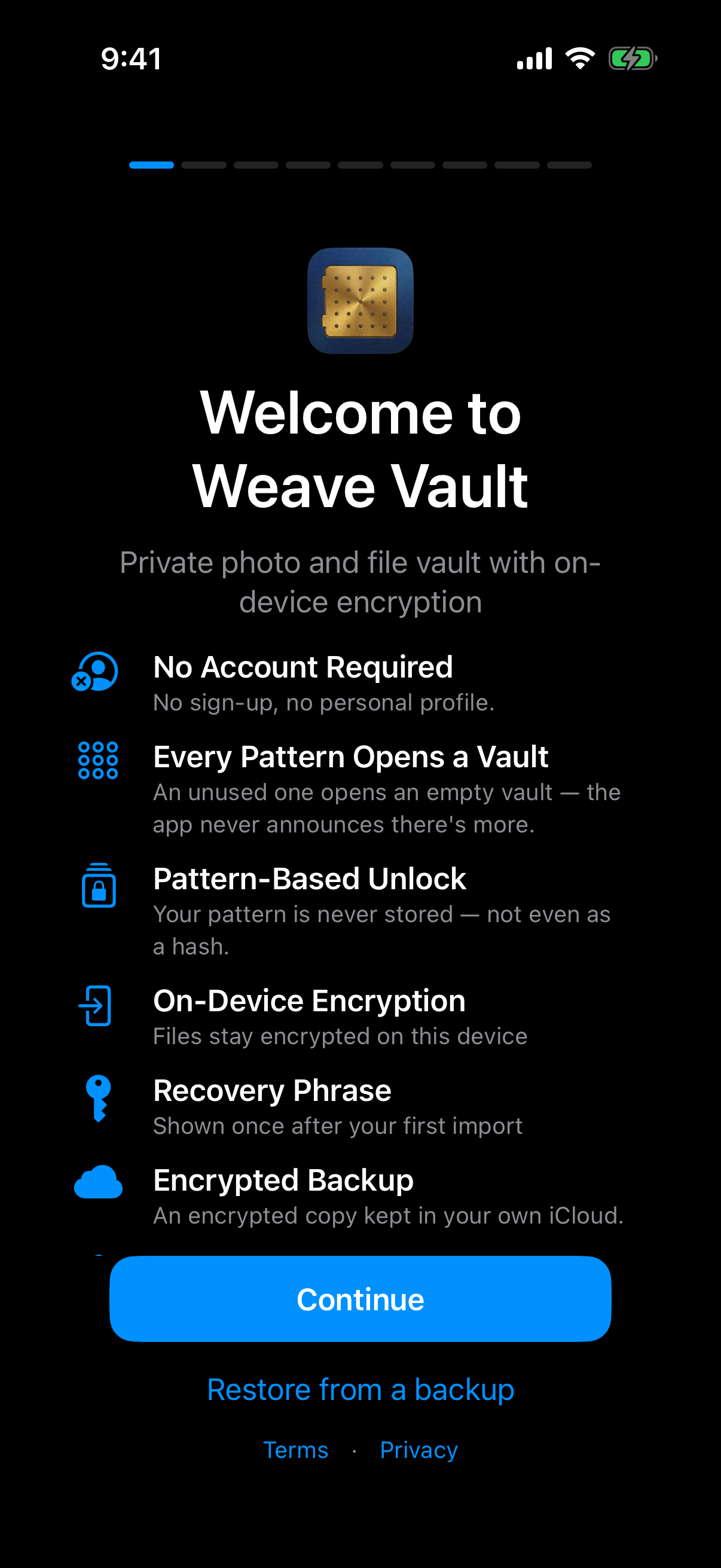 The welcome screen on a fresh install is where a new-phone user finds 'Restore from a backup', which is the route a vault takes.
Encrypted Backup copies the vault's ciphertext to your own iCloud on iPhone, or to your own Google Drive on Android. No vault key and no plaintext leaves the device. The developer runs no server. The Encrypted Backup page describes the mechanism.
Step 1: turn on Encrypted Backup on the old phone
Turn on Encrypted Backup while you still have the old phone. Enabling backup requires Pro. Restoring never does. The support page says it in these words: "requires Pro; restoring never does."
Pro is sold as a monthly subscription, an annual subscription with a 7-day trial, or a one-time lifetime purchase. Backup is neither free nor paid across the board. Enabling it needs Pro. Restoring does not.
This article gives no backup timing, size limits or restore duration. None are published.
Step 2: install the app on the new phone
On a new iPhone, install Weave Vault from the App Store. The homepage links to the App Store and to Google Play. This article follows the iPhone route. The Android route is the same sequence with Google Drive in place of iCloud.
A backup made on an iPhone is stored in iCloud. This article does not claim that a vault restores onto an Android phone from an iPhone backup. That is not published.
Step 3: restore from the backup
Open the app on the fresh install. The welcome screen offers 'Restore from a backup'. Choose it. You do not need Pro for this.
Step 4: draw the pattern or use the recovery phrase
The app asks for your unlock pattern or your recovery phrase. Once you provide one, the vault opens. The pattern unlock page explains how the pattern works.
The next two sections cover what is in the backup and what you need on the new phone.
What the backup contains and who can read it
The backup contains ciphertext. It does not contain a key that opens it.
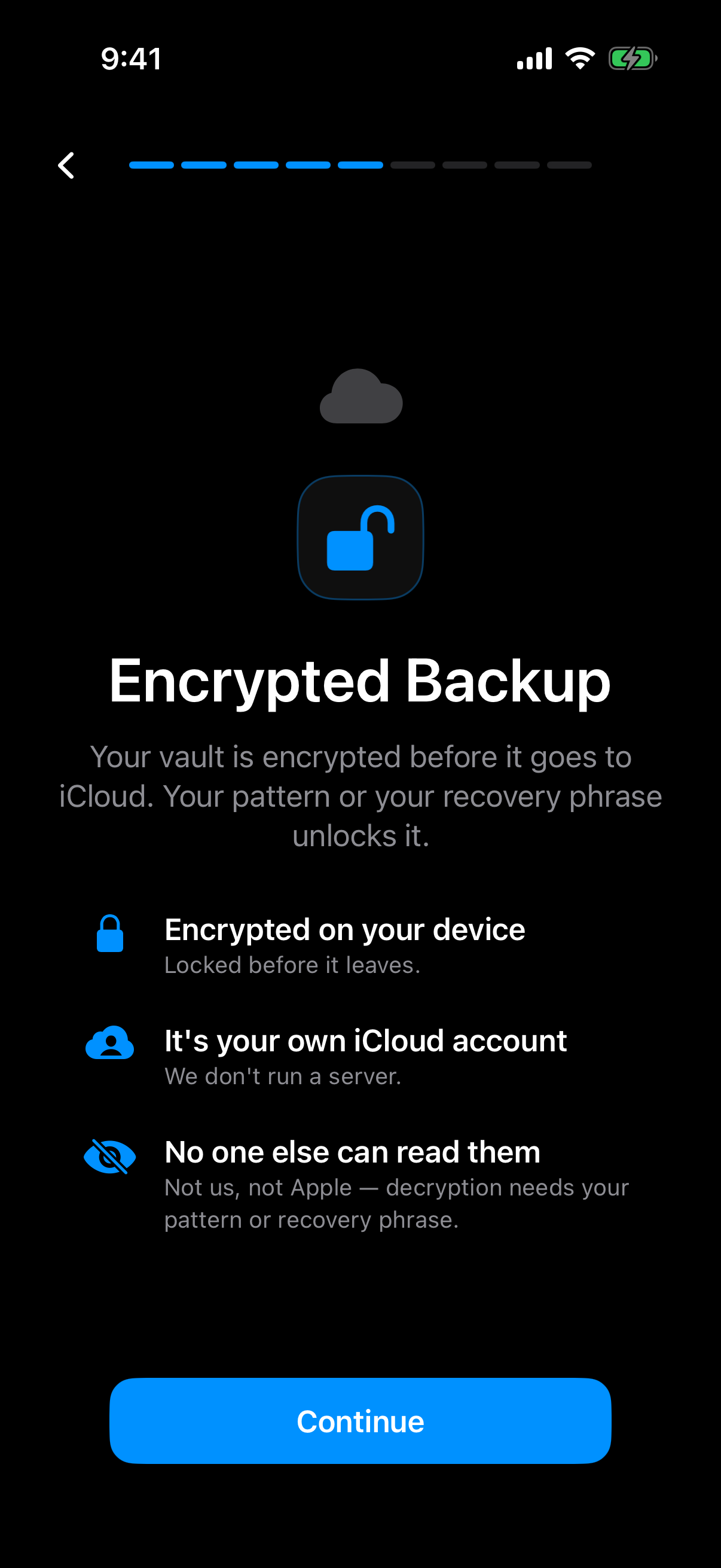 The onboarding screen states the mechanism: the vault is encrypted on the device before it goes to your own iCloud account.
Ciphertext only
Files are sealed with AES-256-GCM. Each file gets a fresh random 96-bit nonce and a 128-bit authentication tag. Because only ciphertext is copied, the cloud provider holds data it cannot read without the pattern or recovery phrase.
Key hierarchy in plain terms
The key chain runs in one order. The unlock pattern goes into Argon2id. Argon2id produces a key-encryption key. That key wraps a random 256-bit per-vault content key, generated by a CSRNG. The Argon2id-derived key does not encrypt file contents directly.
There is no separate passphrase. The pattern is the only credential.
The Argon2id parameters follow RFC 9106: t=3, m=64 MiB, p=1, over a 128-bit salt. Per-item subkeys are derived with HKDF-SHA256, defined in RFC 5869. The full statement is on the security page.
Your own cloud account, not ours
The backup sits in your iCloud or Google Drive account. We do not hold it. We make no claim about what an examiner with the physical device could or could not determine. We do not promise that a forensic pull would recover nothing.
What you need on the new phone: pattern and recovery phrase
You need one of two things on the new phone: the pattern or the recovery phrase.
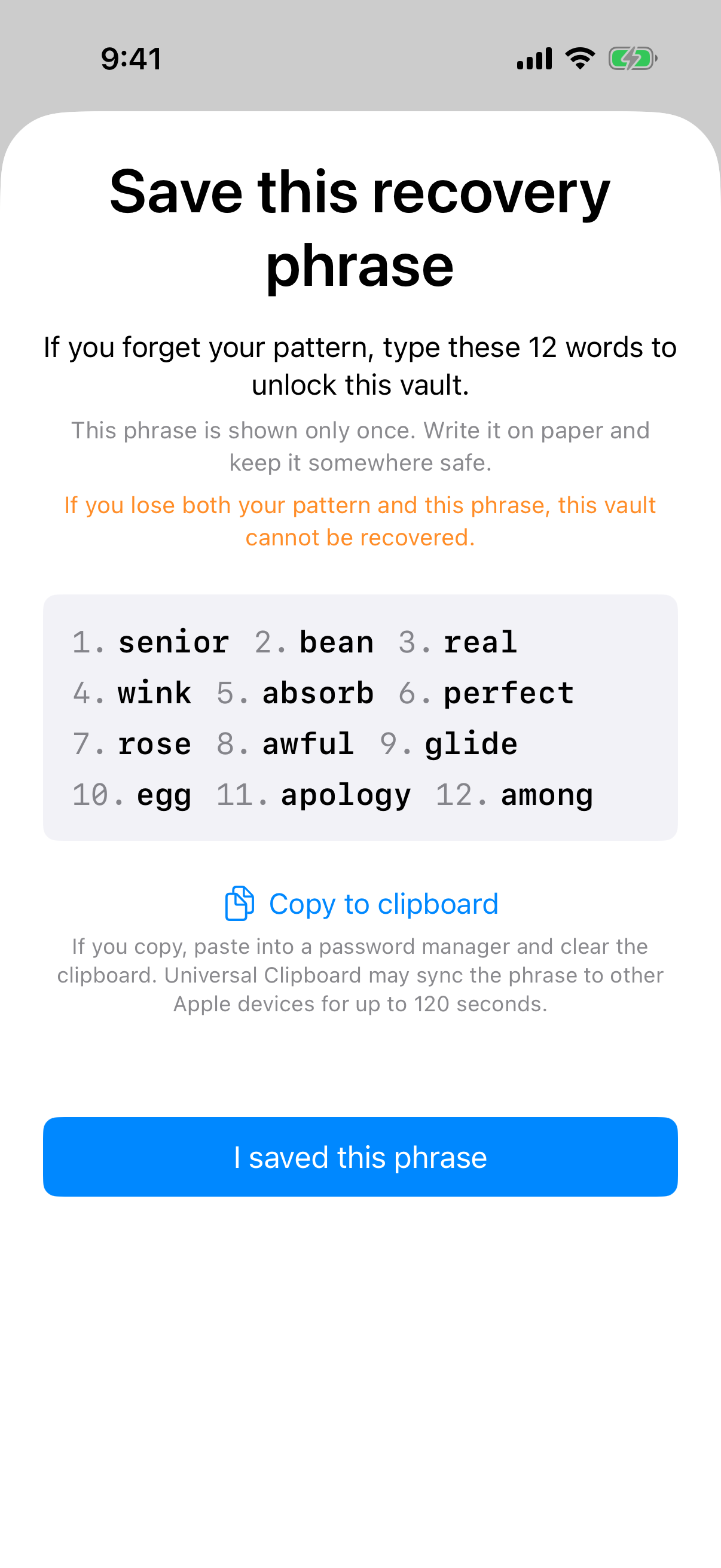 The recovery phrase is shown once, so it has to be saved before you switch phones.
The pattern is not stored anywhere
The pattern is never written to disk, not to a file and not to the Keychain. So a device transfer cannot carry it over. It lives in your memory.
An unrecognised pattern opens a fresh empty vault rather than an error. A mistyped pattern on the new phone can therefore look like an empty vault. The app keeps no vault list, switcher or count. If the vault looks empty after a restore, try the pattern again before you assume anything is lost.
The 12-word phrase is per vault
Each vault has its own 12-word recovery phrase. The app shows it once, so write it down when you first see it. Confirm the phrase is saved somewhere safe before the old phone is wiped.
If both are lost
If both the pattern and the phrase are lost, the vault cannot be opened. The support page puts it this way: "we do not hold a copy, and there is no support process that can override this."
Common questions before you switch phones
Do I lose access if Pro lapses?
No. Browsing and exporting your own files work without a subscription, including if Pro lapses. Restoring never needs Pro either.
Can I just export my files instead?
Yes. Exporting your own files works without a subscription. It produces ordinary files, which then sit outside the vault's encryption. Encrypted Backup keeps the vault itself intact.
What if I use more than one vault?
The free tier allows up to 3 vaults, with up to 50 files per vault. Each vault has its own recovery phrase. Save every phrase before the switch. The multiple vaults page covers how they work. Remember that the app keeps no vault list, so you open each vault by its own pattern.
Is there a Mac, Windows or web version to move to?
No. Weave Vault runs on iPhone and iPad (iOS 16 and later) and on Android. There is no Windows, Mac or web app. The new device must be an iPhone, iPad or Android phone.
To get started, the homepage links to the App Store and to Google Play. For sharing a vault with another person, see secure sharing. It is a separate feature from moving your own vault, and this article does not treat it as a migration route.