You want specific photos out of the main grid, out of shared albums and out of casual view. Google Photos offers ways to do that. They are not all the same kind of protection. This guide separates three levels and names the mechanism behind each.
What 'hiding' a photo in Google Photos actually does
This guide uses three levels. Out of the main grid: the photo is still in your library, just not shown by default. Behind a device lock: the photo is gated by your phone's screen credential. Encrypted under a key only you hold: the file is unreadable without a secret that never leaves you.
These are different things. Moving up a level changes who can open the file and what holds it closed.
Hidden from view is not the same as protected
Google Photos has an Archive feature and a Locked Folder feature. We describe both only at a high level here. Exact behavior, such as what each one hides from search, albums or backup, is set by Google and changes over time. Check Google's own Google Photos help pages before relying on any specific detail.
In general terms, Archive moves a photo out of the main grid. It is a view setting. It is not encryption. Locked Folder puts photos behind your device's screen lock. That is a stronger gate, but the gate is your device credential.
Where a hidden photo still lives
A hidden photo is still a photo in an account and on a device. It is still subject to whatever backup and sync settings you use. Hiding changes where the photo appears. It does not, by itself, change where copies exist.
What a person with your unlocked phone can still reach
If someone holds your unlocked phone, a view setting stops very little. A device lock helps only while the device is locked, or while the locked area asks again. Ask this question of every option:
Who can open this file, and what holds it closed?
For Archive, the answer is: anyone with access to the app, and nothing but a view setting. For a device lock, the answer is: anyone who passes the device credential. For an encrypted vault, the answer is: anyone who holds the key, which is derived from a secret only you know.
Why a photo you hide can still be in your cloud library
Moving a photo into another app does not remove the original. The copy in your Photos library, the copy in your cloud library and any other backup all stay where they are.
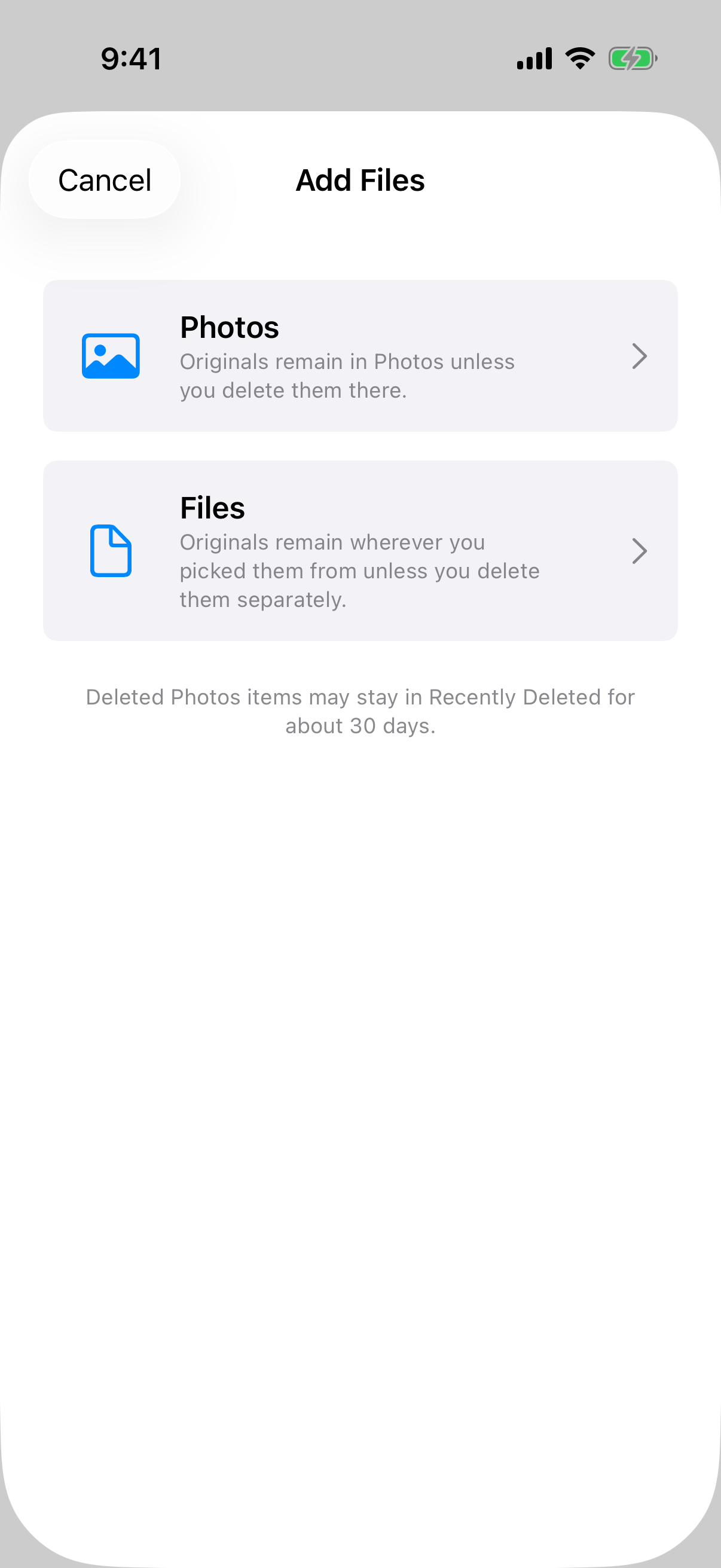 The Add Files sheet says originals stay in Photos or their original location unless you delete them there, which is the central caution of this section.
That is the product's own wording. Weave Vault's Add Files sheet says originals stay in Photos or their original location unless you delete them there. It also says deleted Photos items may stay in Recently Deleted for about 30 days.
Cloud backup and the original copy
If your phone backs up to Google Photos, the original may already be in the cloud. Importing it into a vault on the phone does not reach back and change that copy. The vault protects the vault's copy. The cloud library keeps the one it already had.
After moving a photo, check three places:
- The source library on the phone.
- The recently-deleted area.
- Any cloud backup.
Deleting from one place versus every place
Deleting from one place is not deleting from every place. We do not give a step list for the Google Photos delete flow here. The menus, trash behavior and retention period are Google's to define, and they change. Read Google's own help pages for the current steps before you delete anything. The general principle is stable: find every copy, then decide what to do with each.
Keeping photos in a separate encrypted vault
The third level is a vault that is not part of the Google Photos library at all. Weave Vault is an app for iPhone and iPad (iOS 16+) and Android. It keeps files in an encrypted vault of its own. Here is what it does, in the order it does it. The full description is on the security page.
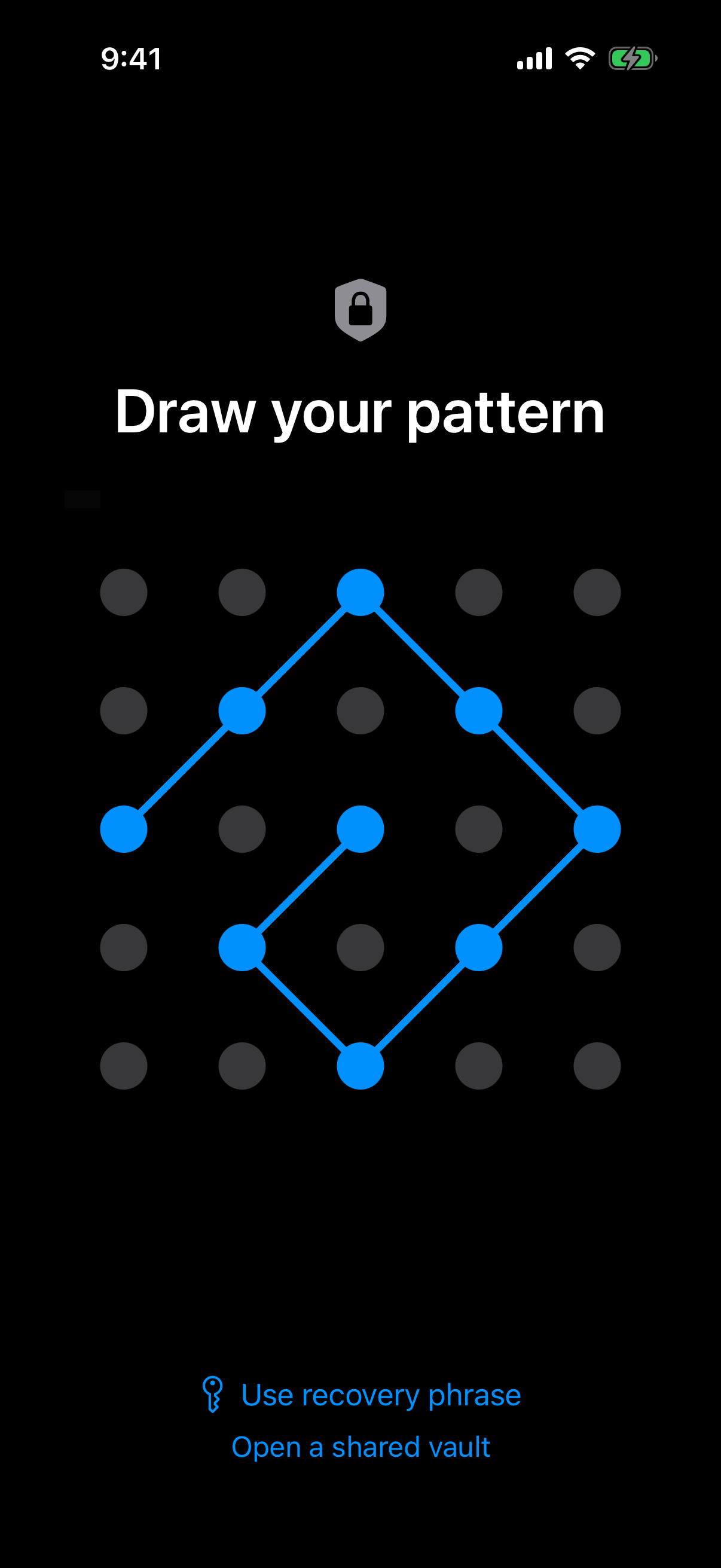 The pattern unlock screen: the pattern is the only credential, and each pattern opens its own vault.
How Weave Vault seals a file
Files are sealed with AES-256-GCM. Each file gets a fresh random 96-bit nonce and a 128-bit authentication tag. Large files are encrypted in independently authenticated chunks, up to 16 GB per file. Per-item subkeys are derived with HKDF-SHA256 (RFC 5869).
The key hierarchy runs in this order:
- The unlock pattern.
- Argon2id (RFC 9106), with t=3, m=64 MiB, p=1, over a 128-bit salt.
- A key-encryption key.
- A random 256-bit per-vault content key from a CSRNG, which the key-encryption key wraps.
The Argon2id-derived key does not encrypt file contents directly. The content key does.
The pattern is the only credential
There is no separate passphrase. The pattern is the only credential, and each pattern opens its own vault. Pattern unlock is described on its own page. The pattern is never written to disk, not to a file and not to the Keychain.
The security page also states a hedge, and we quote it as written: 'We make no claim about what an examiner with the physical device could or could not determine.' This guide does not promise that a forensic pull would recover nothing.
You can keep more than one vault. See multiple vaults.
What 'no account' means in practice
There is no account of any kind. No email, no profile, no sign-up. That holds on the free tier and on Pro. The app has no analytics, no crash reporting and no advertising or attribution SDKs. The manifesto and support pages describe the same position.
There is no Windows, Mac or web app. The app is on iPhone, iPad and Android only. See the Android page.
Moving photos in, and what you pay for
The import flow is short. You open the Add Files sheet, choose Photos or Files as the source, pick the items, and they are encrypted into the open vault.
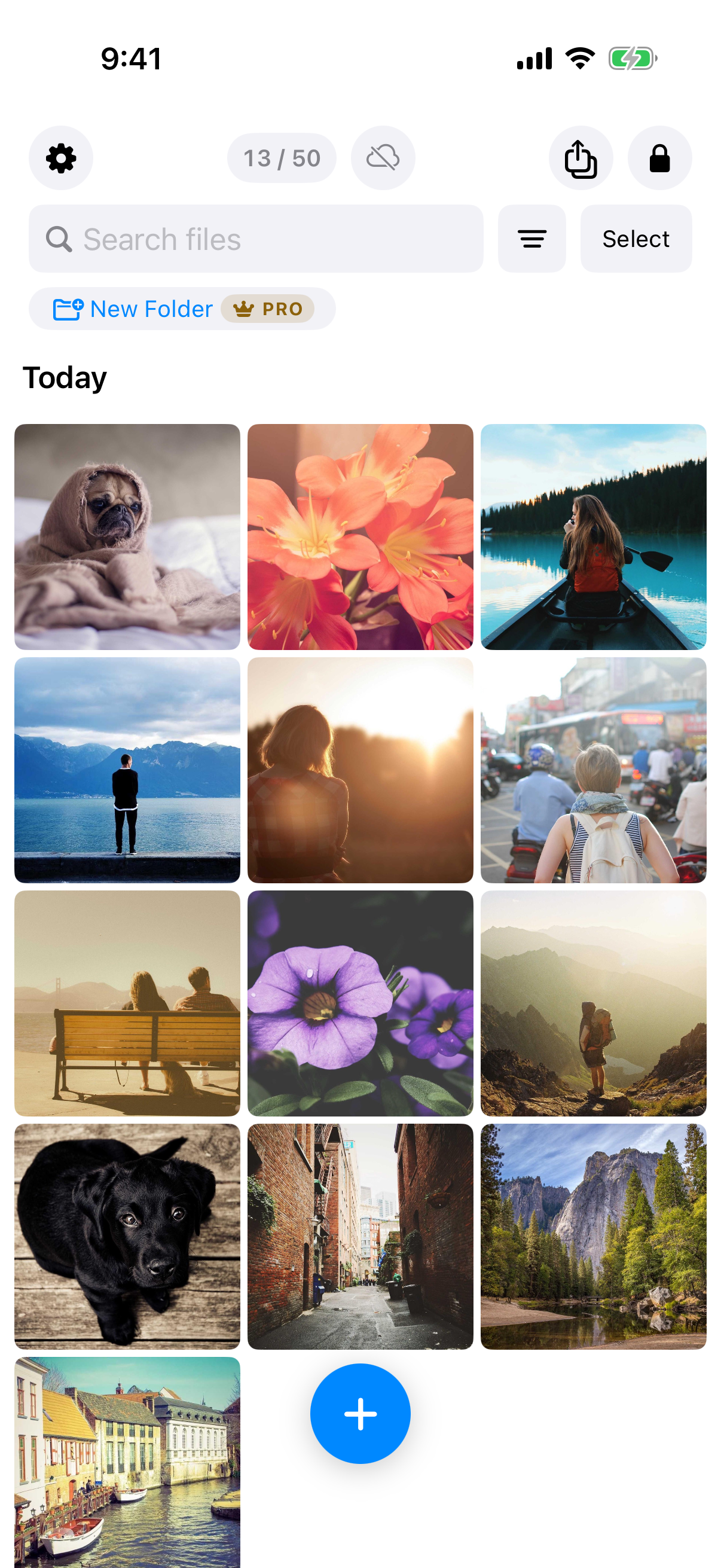 The free-plan counter shows files used out of 50 per vault, and the Pro badge marks folders.
Adding from Photos, the camera or Files
You can add from Photos or from Files. Files can also be added from the camera. Remember the section above: the original stays in Photos unless you delete it there. Adding a file to the vault is a copy into the vault, not a removal from the library.
Free tier limits
The free tier allows up to 3 vaults and up to 50 files per vault. It does not offer unlimited storage, and no plan does.
What Pro adds, and the backup split
The manifesto puts it this way, verbatim: 'Pro opens doors: more vaults, encrypted backup, sharing, folders.' Pro is sold as a monthly subscription, an annual subscription with a 7-day trial, or a one-time lifetime purchase. See folders and secure sharing.
The backup split needs exact wording. Enabling encrypted backup requires Pro. Restoring never does. Browsing and exporting your own files work without a subscription, including if Pro lapses.
Encrypted backup copies the vault's ciphertext to your own iCloud or Google Drive. There is no Weave Vault vault-storage server. No vault key and no plaintext leaves the device. Nothing is uploaded by default. More detail is on the encrypted backup page.
Weave Vault is also excluded from the phone's ordinary device backup by design. A routine iCloud or Finder backup of the phone never contains it.
What can go wrong, and how to recover
A lock that nobody can override has a cost. Know it before you rely on it.
Lose the pattern and the phrase
Each vault has its own 12-word recovery phrase. If you lose both the pattern and the phrase, the vault cannot be opened. The support page says: 'we do not hold a copy, and there is no support process that can override this.'
Store the phrase somewhere that is not on the same phone.
Unrecognised patterns open an empty vault
An unrecognised pattern opens a fresh empty vault. It does not show an error. The app keeps no vault list, switcher or count. If you draw the wrong pattern, you see an empty vault, not a failure message. That is by design, and it can look alarming the first time.
If you share a vault, the recipient gets a point-in-time copy of the whole vault, re-keyed from scratch each time. Sharing has an enforced expiry, and you can revoke early from Shared vaults in the vault's settings. Recipients do not need a vault of their own and do not need to pay.
Choosing between hide, lock and vault
Match the option to the situation you are guarding against.
A short decision list by threat
- A casual glance at the grid calls for hiding. A view setting is enough.
- A borrowed, unlocked phone calls for a lock or a vault. A view setting is not enough.
- A private set kept apart from your cloud library calls for a vault.
What none of these options promise
A vault protects the files inside it. It does not remove copies that exist elsewhere. A hidden photo is still a photo in your library. A locked folder is still gated by your device credential. A vault is gated by a key derived from your pattern, and by nothing else.
Before you move anything, find every copy. Then choose the level that fits.
Weave Vault is an app on the App Store or Google Play, reached from the homepage. There is no web signup.