You want a locked place for IDs, screenshots of codes or private photos. You expect a lock toggle on a folder. This guide explains what a lock can mean, how Weave Vault builds one from encryption, and what it costs, backs up and cannot recover.
What 'password protect a folder' means on an iPhone
The phrase covers two different things. They look the same on screen. They behave differently when someone gets past the screen.
A locked view versus encrypted files
The first meaning is a cover. Files stay as they are, and a screen hides them until you authenticate. The contents on storage are unchanged. The lock is a gate in front of readable data.
The second meaning is encryption. The file contents are transformed so they are unreadable without a key. There is no readable copy to reach behind a gate. The lock is the math.
Weave Vault uses the second meaning. It seals each file with AES-256-GCM. Every file gets a fresh random 96-bit nonce and a 128-bit authentication tag. The tag means a file altered after sealing fails to open instead of opening as garbage.
This guide does not compare how other apps handle locking or hiding. If a page does, check its claims against the vendor's own documentation.
What a folder lock should actually protect
A useful test is simple. Ask what is stored if the lock screen is bypassed. If the answer is the original file, the lock is a cover. If the answer is ciphertext, the lock is encryption.
A folder lock should also not rely on a credential stored next to the data. That is why the next section starts with where the key comes from.
How a vault replaces the password on a folder
A vault is a container that is encrypted as a whole, with folders inside it. You do not put a password on a folder. You open the vault with a pattern, and everything in it becomes readable for that session.
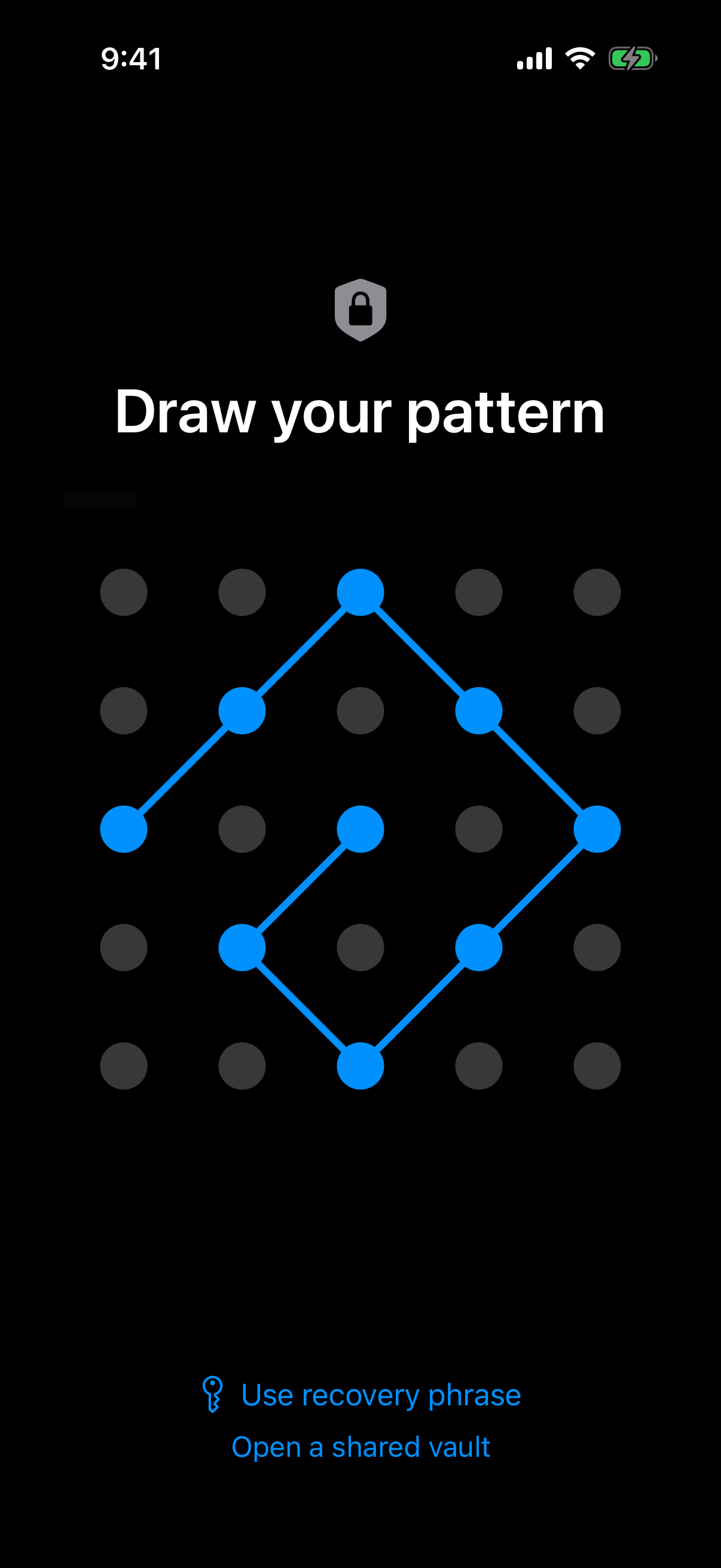 The pattern entry screen is the credential: every key in the vault is derived from the pattern drawn here.
The rest of this section follows the pattern from the screen to the key.
The pattern is the only credential
There is no separate passphrase. The pattern is the only credential. It is never written to disk, not to a file and not to the Keychain. See pattern unlock for how entry works.
The security page is the source for the cryptography statements below.
From pattern to key: Argon2id, a key-encryption key, a content key
The key hierarchy runs in this order:
- The unlock pattern.
- Argon2id, a memory-hard key derivation function.
- A key-encryption key.
- A random 256-bit per-vault content key, generated by a CSRNG and wrapped by the key-encryption key.
The Argon2id-derived key does not encrypt file contents directly. Its job is to unwrap the content key. The content key does the work on files.
The Argon2id parameters follow RFC 9106: t=3, m=64 MiB, p=1, over a 128-bit salt. Those numbers make each guess cost time and memory. Per-item subkeys are derived with HKDF-SHA256, defined in RFC 5869.
Large files are encrypted in independently authenticated chunks. The ceiling is 16 GB per file.
A 5x5 grid has a finite number of patterns. That is why the derivation is deliberately slow and memory-hungry. We make no further claim here about how long any particular pattern would resist guessing.
Setting up folders inside a locked vault
The setup is short. The one thing to know first is that folders are not free.
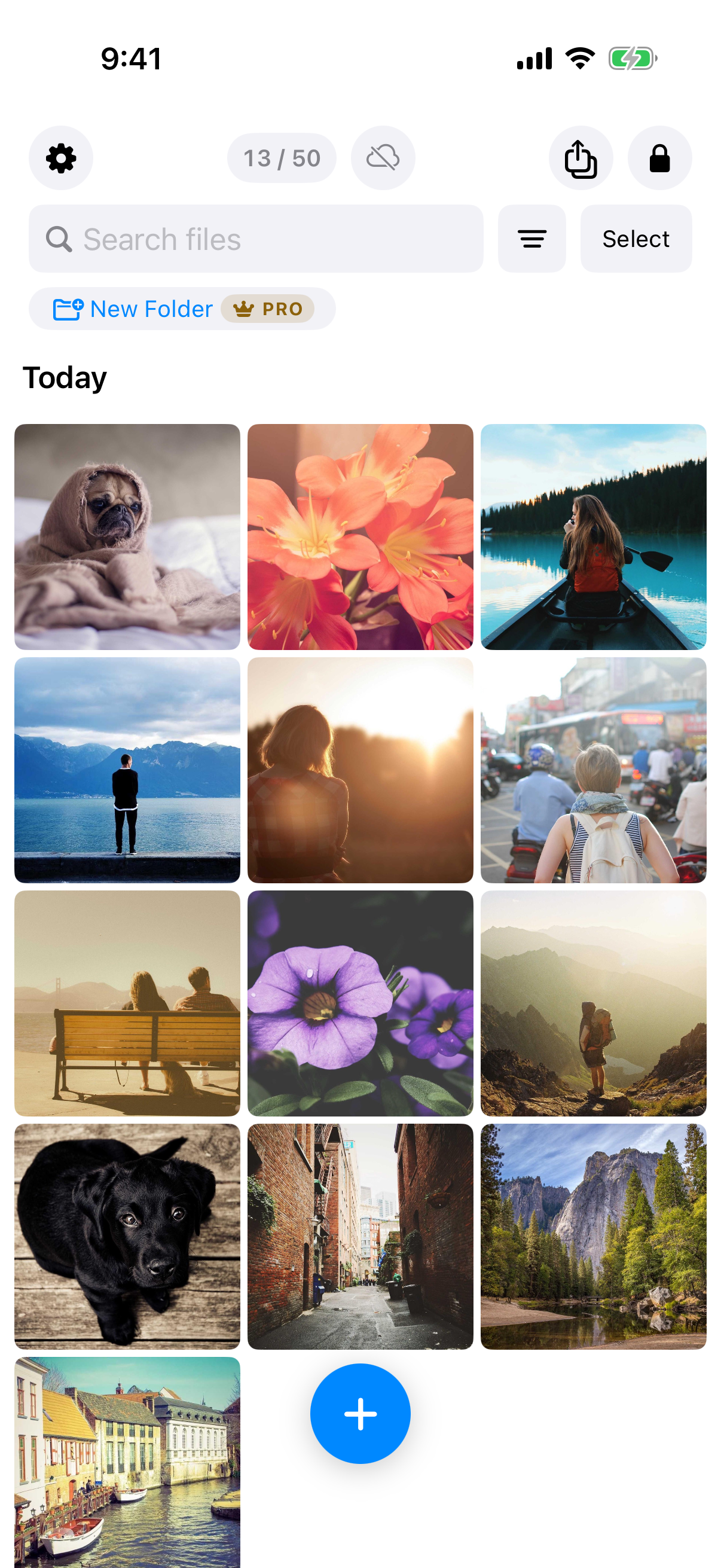 A free vault at 13 of 50 files, with the Pro badge on New Folder: the limit and the paid feature in one frame.
The flow, in order:
- Create a pattern. This creates the vault.
- Import files from Photos or Files.
- Create a folder.
- Use Select and Move to put items into it.
Import from Photos or Files
Importing copies files into the vault. Originals stay in Photos or their original location until you delete them there. Deleted Photos items may stay in Recently Deleted for about 30 days. The app's Add Files sheet says this, and it matters: a file is not private until the original is gone.
Create a folder and move items into it
Once a vault has files, create a folder, then select items and move them in. The detail page for folders covers it. Folders organise what is already encrypted. They do not add a second lock.
What folders cost
Folders are a Pro feature. The manifesto states it directly: "Pro opens doors: more vaults, encrypted backup, sharing, folders."
The free tier allows up to 3 vaults and up to 50 files per vault. The counter in the screenshot above shows 13 / 50. Pro is sold as a monthly subscription, an annual subscription with a 7-day trial, or a one-time lifetime purchase. Storage is not described as unlimited anywhere, and this guide does not claim it. See multiple vaults for how the vault limit works.
Pricing details are on the support page.
What the lock does not do: network, accounts and backup
Encryption protects files at rest. It says nothing about accounts, servers or copies. Those are separate questions, and the answers are plain.
No account, no analytics, no vault server
There is no account of any kind: no email, no profile, no sign-up. That holds on free and on Pro. There is no analytics, no crash reporting, and no advertising or attribution SDKs.
There is also no Weave Vault vault-storage server. Nothing is uploaded by default. There is no web signup either. The app is installed from the App Store or Google Play.
Backup goes to your own iCloud or Google Drive
Encrypted backup copies the vault's ciphertext to your own iCloud or Google Drive. No vault key and no plaintext leaves the device. The encrypted backup page describes the feature.
The split on cost is exact. Enabling backup requires Pro. Restoring never does. Browsing and exporting your own files also work without a subscription, including if Pro lapses.
Weave Vault is excluded from the phone's ordinary device backup by design. A routine iCloud or Finder backup of the phone never contains it. Only the encrypted backup you turn on yourself holds a copy.
One hedge belongs here, quoted as written on the security page: "We make no claim about what an examiner with the physical device could or could not determine." Encryption is a strong control. It is not a promise about forensic work, and this guide does not make one.
Losing the pattern: the 12-word recovery phrase
A credential that is never stored cannot be reset by anyone. That is the cost of the design. The recovery phrase is the answer to it.
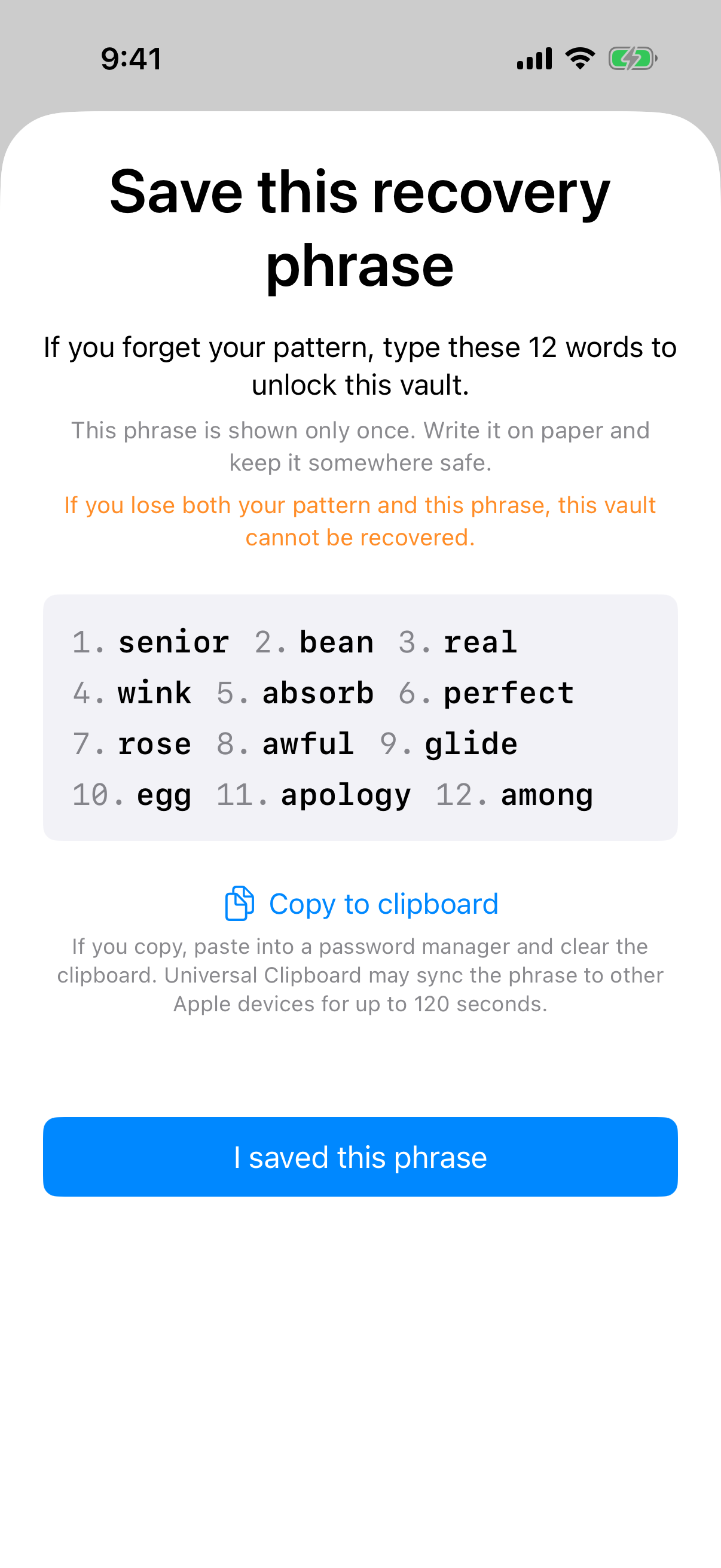 The recovery phrase screen appears once, with its warning that losing both the pattern and the phrase ends access to the vault.
One phrase per vault
Each vault has its own 12-word recovery phrase. It is shown once, when the vault is created. A second vault has a second phrase.
Save it somewhere separate from the phone. This is a practical step, not a security guarantee. A phrase stored only on the phone is lost with the phone.
What happens if both are lost
If both the pattern and the phrase are lost, the vault cannot be opened. The support wording is exact: "we do not hold a copy, and there is no support process that can override this."
There is no account to reset and no server holding a key. Treat the phrase as the only way back in. The support page has the recovery wording.
Other things a vault can do that a folder lock cannot
A plain folder lock has one state: locked or unlocked. A vault built on keys can do more.
Unrecognised pattern opens an empty vault
An unrecognised pattern opens a fresh empty vault. It does not show an error. The app keeps no vault list, switcher or count, so nothing on screen reveals how many vaults exist.
Sharing a copy with an expiry
Sharing sends a point-in-time copy of a whole vault. The copy is re-keyed from scratch each time. It has an enforced expiry, and you can revoke it early from Shared vaults in the vault's settings. Recipients don't need a vault of their own and don't need to pay for anything. See secure sharing.
Where it runs
Weave Vault runs on iPhone and iPad (iOS 16 and later) and on Android. There is no Windows, Mac or web app. To install it, use the App Store or Google Play from the homepage.
The short version: a password on a folder is a cover. A vault is encryption, with a key that starts from a pattern that never touches disk. Read the security page and judge the statements against the app yourself.