
Most guides to hiding videos on an iPhone stop at the Photos app's Hidden album. That is a fair answer to a narrow question. It does not tell you what "hidden" means, who it works against, or what happens to the original file. This guide covers both the built-in method and the alternative of moving videos into an encrypted vault, and it states the limits of each.
What "hiding" a video on iPhone actually means
The word "hide" covers two different things. They are easy to confuse, and the difference decides which method you need.
Hidden from the main grid versus encrypted
The first meaning is visibility. The video is removed from the main library view, so it does not appear when someone scrolls through your photos. The file is still an ordinary file in the same library.
The second meaning is sealing. The file is encrypted, so its contents cannot be read without a credential. Without that credential, the file is unreadable data, whatever app or tool opens it.
Keep the two apart. A video can be hidden without being encrypted. A video can also be encrypted and still be easy to find, if nothing hides the app that holds it.
Who you are hiding it from
The right method depends on the threat. Two situations are common.
- A casual glance. Someone borrows your phone, or looks at the screen over your shoulder. You want a video to stay out of the grid they scroll.
- Deliberate access. Someone has your unlocked phone for a while and is looking on purpose. You want the file to be unreadable without a credential.
The Hidden album is an Apple feature, and Apple's documentation describes how it behaves, including any Face ID or passcode lock on the album on recent iOS versions. Check Apple Support's guide to hiding photos and videos for the current wording on your iOS version. This article does not restate Apple's lock behaviour beyond that.
One more limit applies to every method here. We make no claim about what an examiner with the physical device could or could not determine. No method in this guide should be read as a promise about forensic examination.
Method 1: the built-in Hidden album
The Hidden album is built into the Photos app. It needs no extra software, and for a casual glance it is a reasonable choice.
Steps to hide a video
The order is plain. Open Photos, select the video, open the share or more menu, and choose Hide. Apple confirms the action before it moves the video. Menu labels have shifted between iOS versions, so follow Apple Support's own page for hiding photos and videos if your screen differs from the description here.
Where the video goes and how to find it again
The video leaves the main grid and goes into the Hidden album. You can open that album to view the video again, and Apple's guide describes how to move it back to the main library. Apple also documents a setting under Settings, then Photos, that controls whether the Hidden album is shown or kept out of the Albums list. Check Apple's page for where that setting sits on your version of iOS.
Limits worth knowing
Be literal about what this does. The video stays in the Photos library. It remains part of ordinary device handling and of iCloud Photos, if you use it. We do not state what Apple encrypts or does not encrypt for this album, because that is Apple's to document, not ours.
The Hidden album is adequate for the casual glance described above. It is built for that job. It is not a separate store with its own credential that you control, and this guide does not claim otherwise.
Method 2: move videos into an encrypted vault
The second method takes the video out of the Photos library and seals it inside a vault app. This guide uses Weave Vault as the example, because its mechanism is published and can be checked.
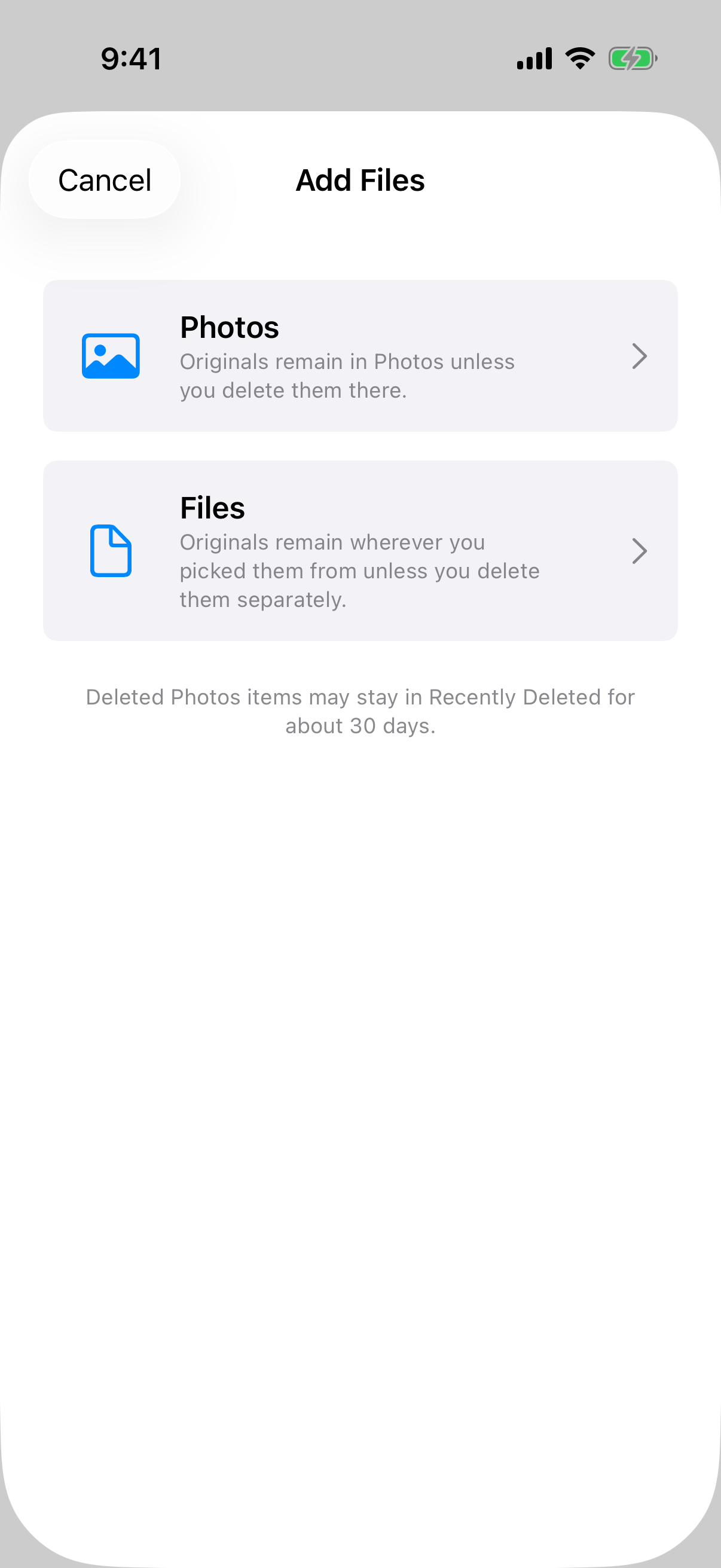 The Add Files sheet offers Photos or Files as the source, and its on-screen note says originals stay where they were until you delete them.
Weave Vault runs on iPhone and iPad (iOS 16 and later) and on Android. There is no Windows, Mac or web app.
What a vault changes
Importing a video changes the file, not only its visibility. Weave Vault seals files with AES-256-GCM. Each file gets a fresh random 96-bit nonce and a 128-bit authentication tag. Large files are encrypted in independently authenticated chunks. The ceiling is 16 GB per file, which is the one published limit that matters for long or high-resolution video.
No account is needed for any of this. There is no email, no profile and no sign-up, on the free tier or on Pro.
Importing from Photos or Files
Weave Vault's support page says you can import a photo, video or file. That covers videos. The Add Files sheet offers two sources: the Photos picker or Files. This guide makes no claim about in-app video playback beyond what the product pages publish.
While it works, the app shows a progress dialog titled "Encrypting to vault" and asks you to keep the app open until it finishes. Do not switch away from a large video mid-import.
Deleting the original afterwards
This step is the one most guides leave out. The Add Files sheet states that originals stay in Photos, or in their original location, unless you delete them there. It also notes that deleted Photos items can remain in Recently Deleted for a while.
So the sequence is:
- Import the video into the vault and wait for the progress dialog to finish.
- Open the vault and confirm the video is there.
- Delete the original from Photos.
- Open Recently Deleted in Photos and delete the item there too.
Until step 4 is done, an unencrypted copy still exists on the phone. Moving a video into a vault and leaving the original in place protects nothing.
How the lock works: a pattern, not a passcode you can read off the disk
A vault is only as strong as the way it is opened. Weave Vault is opened with a drawn pattern on a grid. The pattern is the only credential. There is no separate passphrase. You can read more on the pattern unlock page.
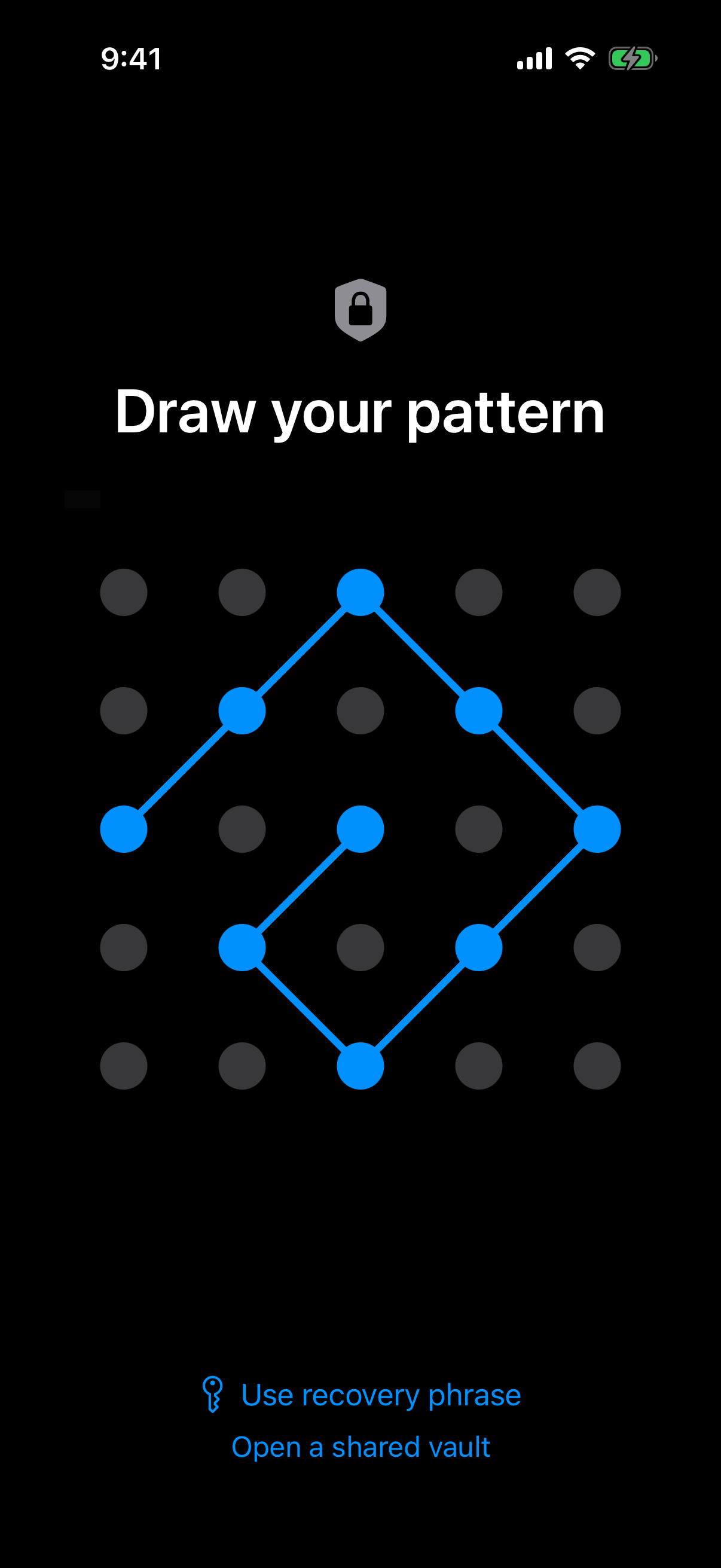 The lock screen takes a pattern on a 5x5 dot grid, with the recovery phrase link visible beneath it.
Pattern, Argon2id and the key hierarchy
The key hierarchy runs in a fixed order. The unlock pattern goes into Argon2id. Argon2id produces a key-encryption key. That key wraps a random 256-bit per-vault content key, generated by a CSRNG. The Argon2id-derived key does not encrypt file contents directly.
The Argon2id parameters follow RFC 9106: t=3, m=64 MiB, p=1, over a 128-bit salt. Per-item subkeys are derived with HKDF-SHA256, defined in RFC 5869. The full description is on the security page.
The pattern is never written to disk. It is not stored in a file and not in the Keychain. The app derives keys from it when you draw it, and that is all.
What an unrecognised pattern does
An unrecognised pattern does not show an error. It opens a fresh, empty vault. The app keeps no vault list, no switcher and no count. Someone who draws a wrong pattern sees an empty vault, not a message confirming that something is stored.
Recovery phrase
Each vault has its own 12-word recovery phrase. If both the pattern and the phrase are lost, the vault cannot be opened. The support page puts it this way: "we do not hold a copy, and there is no support process that can override this." Write the phrase down and keep it somewhere that is not your phone.
Organising hidden videos and what costs money
Once videos are in a vault, you may want to sort them. You may also want a copy that survives losing the phone.
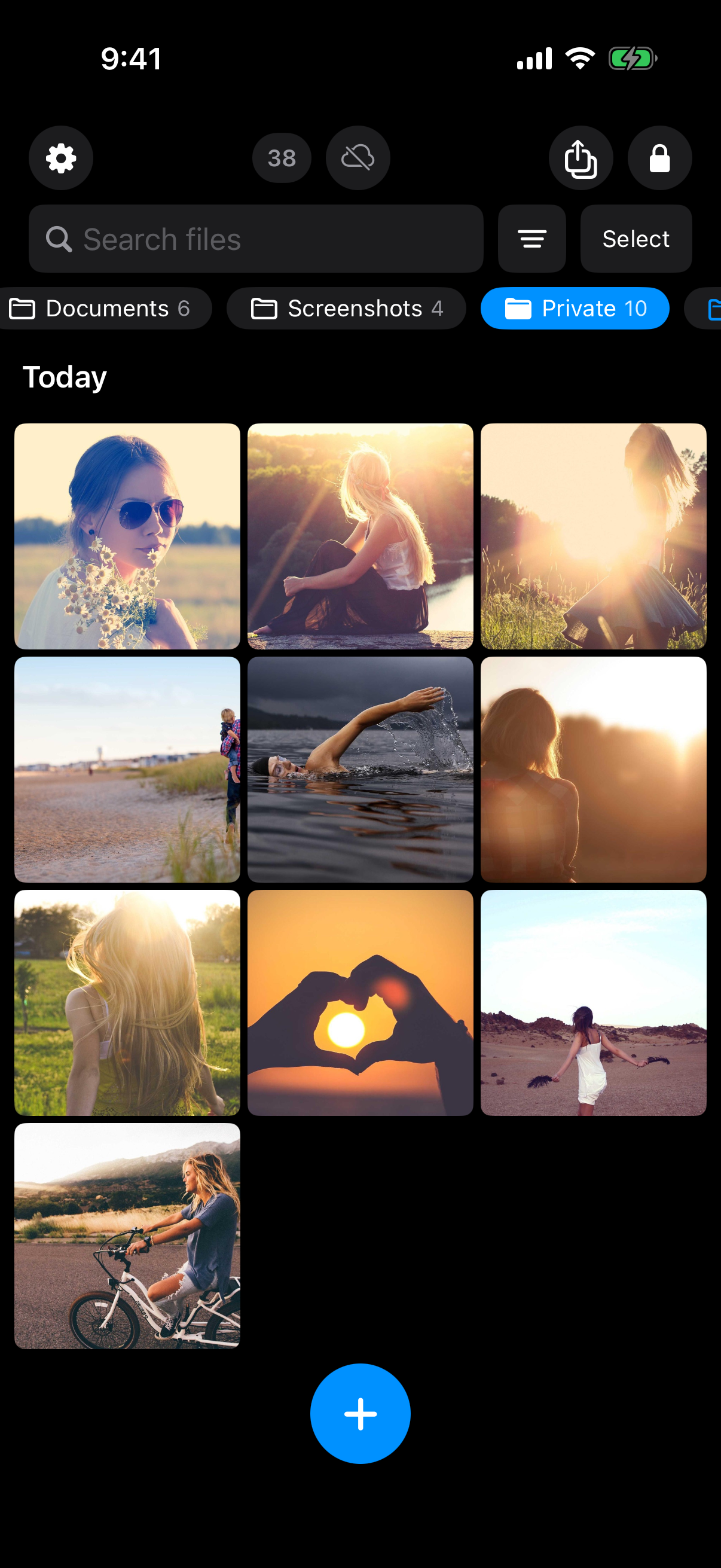 A Private folder inside a vault, shown here with photos, is the grouping idea that folders provide.
Folders inside a vault
Folders let you group items inside a vault, for example by topic or date. Folders are a Pro feature. The manifesto says, verbatim: "Pro opens doors: more vaults, encrypted backup, sharing, folders." If you also want separate vaults for separate sets of videos, see multiple vaults.
Free tier limits
The free tier allows up to 3 vaults and up to 50 files per vault. Pro is sold as a monthly subscription, an annual subscription with a 7-day trial, or a one-time lifetime purchase. Weave Vault does not publish an unlimited-storage claim, and neither does this article.
Backup and the Pro split
There is no Weave Vault vault-storage server. Encrypted backup copies the vault's ciphertext to your own iCloud or Google Drive account. No vault key and no plaintext leaves the device. Nothing is uploaded by default.
The split matters. Enabling backup requires Pro. Restoring never does. The support page says so directly: "requires Pro; restoring never does." Browsing and exporting your own files work without a subscription, including if Pro lapses.
Weave Vault is also excluded from the phone's ordinary device backup by design. A routine iCloud or Finder backup of the phone never contains it. That is the reason the separate encrypted backup exists.
Choosing between the two methods
Both methods hide a video. They differ in what stands between the video and a person who opens your phone.
A short decision table
| Question | Hidden album | Encrypted vault |
|---|---|---|
| Removes the video from the main grid | Yes | Yes, once the original is deleted |
| Where the file lives | In the Photos library | In the vault app, sealed with AES-256-GCM |
| Credential | Apple's own lock behaviour, per Apple's documentation | A pattern, plus a 12-word recovery phrase |
| Suits | A casual glance at a shared phone | A file that should be unreadable without a credential |
| Extra step | None | Import, then delete the original |
The first row of the vault column carries a condition. Until the original is deleted from Photos and from Recently Deleted, the video is still visible in the library.
What neither method promises
Two things stay true for both. Deleting the original is a separate step that you must do yourself. And no method here is a promise about physical-device examination. We make no claim about what an examiner with the physical device could or could not determine.
One optional feature is worth a mention. Duress mode opens a decoy vault, and the device loses the keys to the other vaults. The duress mode page explains it in full, and this guide does not describe it beyond that page. The secure camera page covers capturing straight into a vault, which avoids the original-in-Photos problem for new videos. The wider list is on the features page.
If a casual glance is the whole threat, the Hidden album is enough. If the file should be unreadable without a credential, use a vault. Weave Vault is on the App Store and Google Play, reached from the homepage. There is no web signup.