
Most guides to hiding photos on an iPad stop at the taps. This one also says what hiding does, and what it does not do. Then it shows how an encrypted vault works, including the import step that most guides skip.
The short answer: two ways to hide photos on an iPad
There are two options. One is the Hidden album, a feature of the Photos app on iPadOS. The other is an encrypted vault app, such as Weave Vault. They solve different problems. Neither is better in every case.
Hiding moves a photo out of the grid
Hiding removes a photo from the main library view. The photo still exists as a photo in your library. It sits in a separate album instead of the main grid.
Encrypting changes what the file is
Encryption seals the file so it opens only with a key. Without the key, the file is unreadable data. That is a different property from being out of sight.
Weave Vault runs on iPhone and iPad (iOS 16+) and Android. There is no Windows, Mac or web app.
What the Hidden album does, and what it does not
The Hidden album is an Apple feature of the Photos app. It moves a photo into a separate album so the photo no longer shows in the main library view. For many people, that is exactly what they need. A visitor who scrolls your grid will not see the photo.
Where hidden photos go
A hidden photo moves to the Hidden album inside the Photos app. It does not leave Photos. The exact menu names and the Settings option that shows or hides the album vary by iPadOS version, so check Apple's own documentation for the version you run.
Who can still reach them
Anyone who can open the Photos app on an unlocked iPad can look for the album, unless a lock is in place. Apple offers a lock for the album that uses Face ID or the device passcode on current versions. Which iPadOS version added it, and how it behaves on your iPad, are questions for Apple's documentation. This article does not state them.
Lock requirements
The lock, where present, is part of the Photos app and the system. It is Apple's feature and it is not something Weave Vault controls or changes.
This article makes no claim about how Apple stores hidden photos, and no claim that the feature is insecure. It describes only the mechanism: a photo moves to another album.
The gap this article addresses is narrow. A photo in the Hidden album is still a photo in the Photos library. It is not a file sealed with a key that you control. If you only want photos out of the grid, that may be enough. If you want a sealed file, read on.
Moving photos into Weave Vault on an iPad
The import flow is short. You open the Add Files sheet and choose a source. Then the app encrypts what you picked.
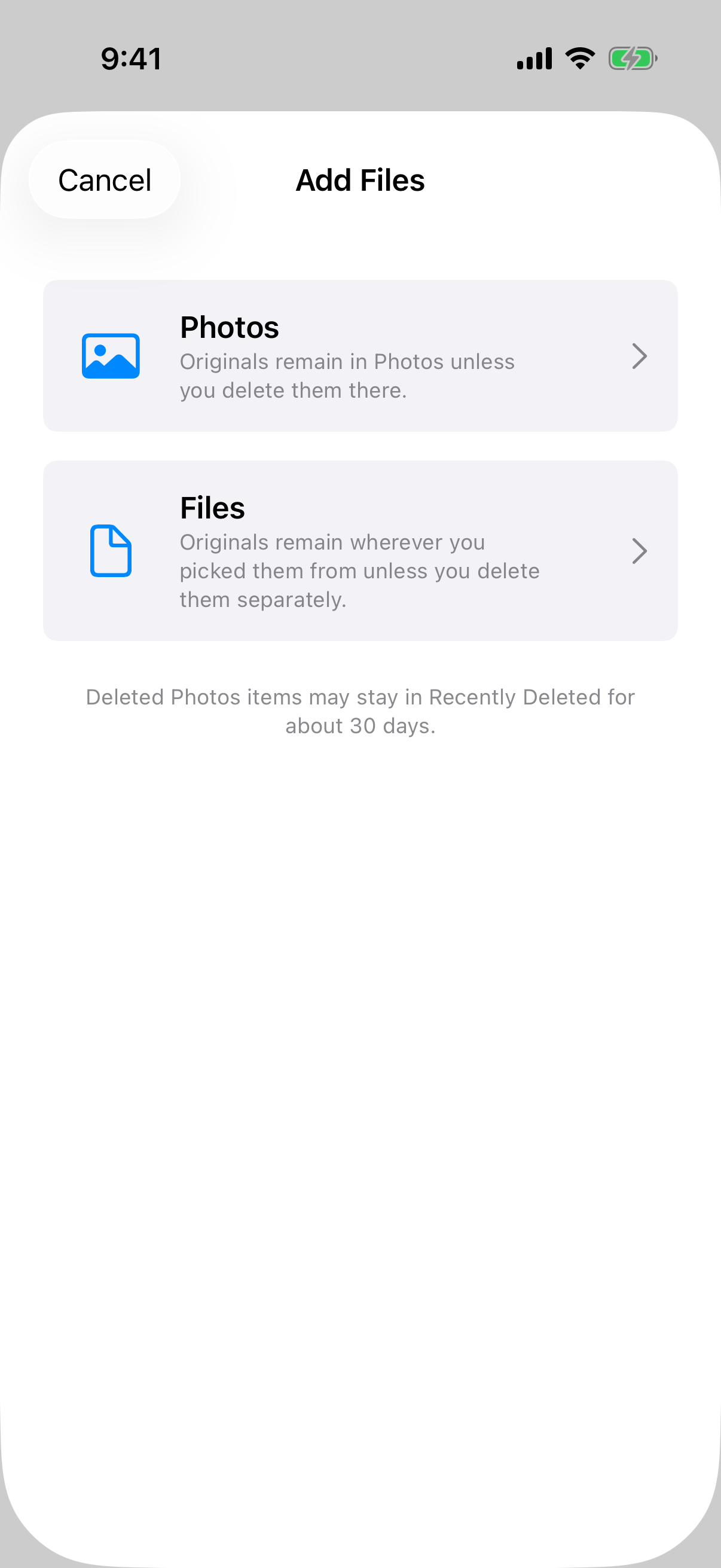 The Add Files sheet offers Photos or Files, and its on-screen note says originals are not removed for you.
The note on that sheet matters most. It says originals stay in Photos or their original location unless you delete them there.
Add from Photos or Files
The Add Files sheet offers two sources: Photos or Files. Pick the one that holds your images. Select the items and confirm.
Encryption happens during import
During import, the app shows an "Encrypting to vault" dialog. It asks you to keep the app open until it finishes. Do not switch away.
Each file is sealed with AES-256-GCM. Every file gets a fresh random 96-bit nonce and a 128-bit authentication tag. Large files are encrypted in independently authenticated chunks, up to 16 GB per file.
Originals stay until you delete them
Importing copies a file into the vault. It does not remove the original. This is the step readers most often miss.
After importing, do this:
- Check that the imported items open inside the vault.
- Delete the originals from Photos yourself.
- Empty Recently Deleted.
The Add Files sheet says deleted Photos items may stay in Recently Deleted for about 30 days. Until you empty it, a copy remains in Photos. If you skip step 3, the unencrypted original is still on the iPad.
The Secure camera feature is a related route. It is built to capture into the vault, so there is no original in Photos to delete.
How the vault opens: a pattern, not a password or an account
Weave Vault has one credential: an unlock pattern drawn on a grid of dots. There is no separate passphrase. The details of Pattern unlock and the full cryptographic description on the Security page are the first-party sources for this section.
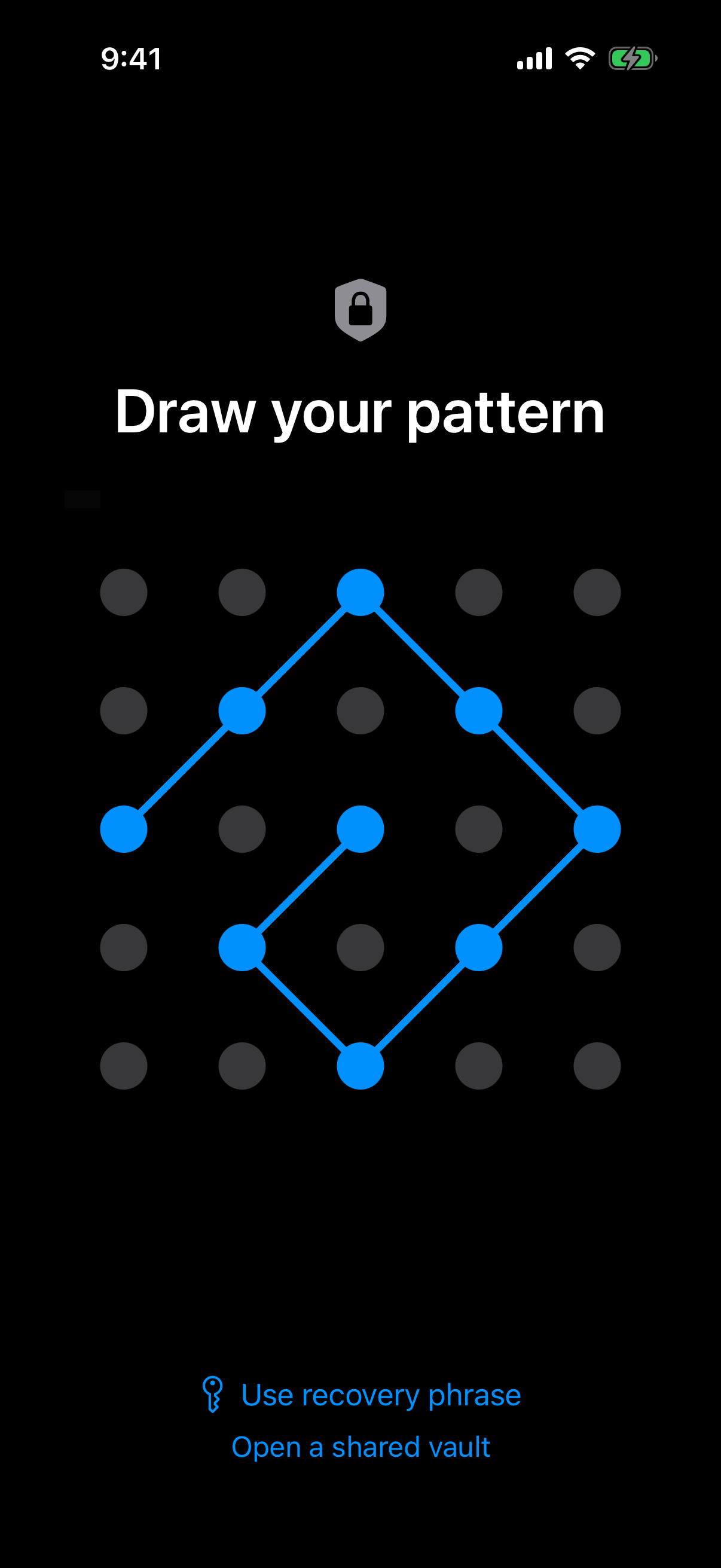 The 5x5 pattern grid is the only credential, and every key in the vault starts from it.
The key hierarchy
The order is fixed:
- The unlock pattern goes through Argon2id (RFC 9106). The parameters are t=3, m=64 MiB, p=1, over a 128-bit salt.
- Argon2id produces a key-encryption key.
- That key wraps a random 256-bit per-vault content key. A CSRNG generates the content key.
- Per-item subkeys are derived with HKDF-SHA256 (RFC 5869).
The Argon2id-derived key does not encrypt file contents directly. It only unwraps the content key.
Nothing stored on the device
The pattern is never written to disk. It is not written to a file and it is not written to the Keychain. The pattern is the only credential.
The Security page carries one hedge, and it applies here: "We make no claim about what an examiner with the physical device could or could not determine."
There is also no account of any kind, on the free tier or on Pro. There is no email, no profile and no sign-up. The app has no analytics, no crash reporting, and no advertising or attribution SDKs.
A different pattern opens a different vault
An unrecognised pattern does not show an error. It opens a fresh, empty vault. The app keeps no vault list, no switcher and no count. This is how Multiple vaults work: each pattern opens its own vault.
Limits, recovery and backup you should know before you start
A vault has limits that the Hidden album does not. Read them before you move anything in.
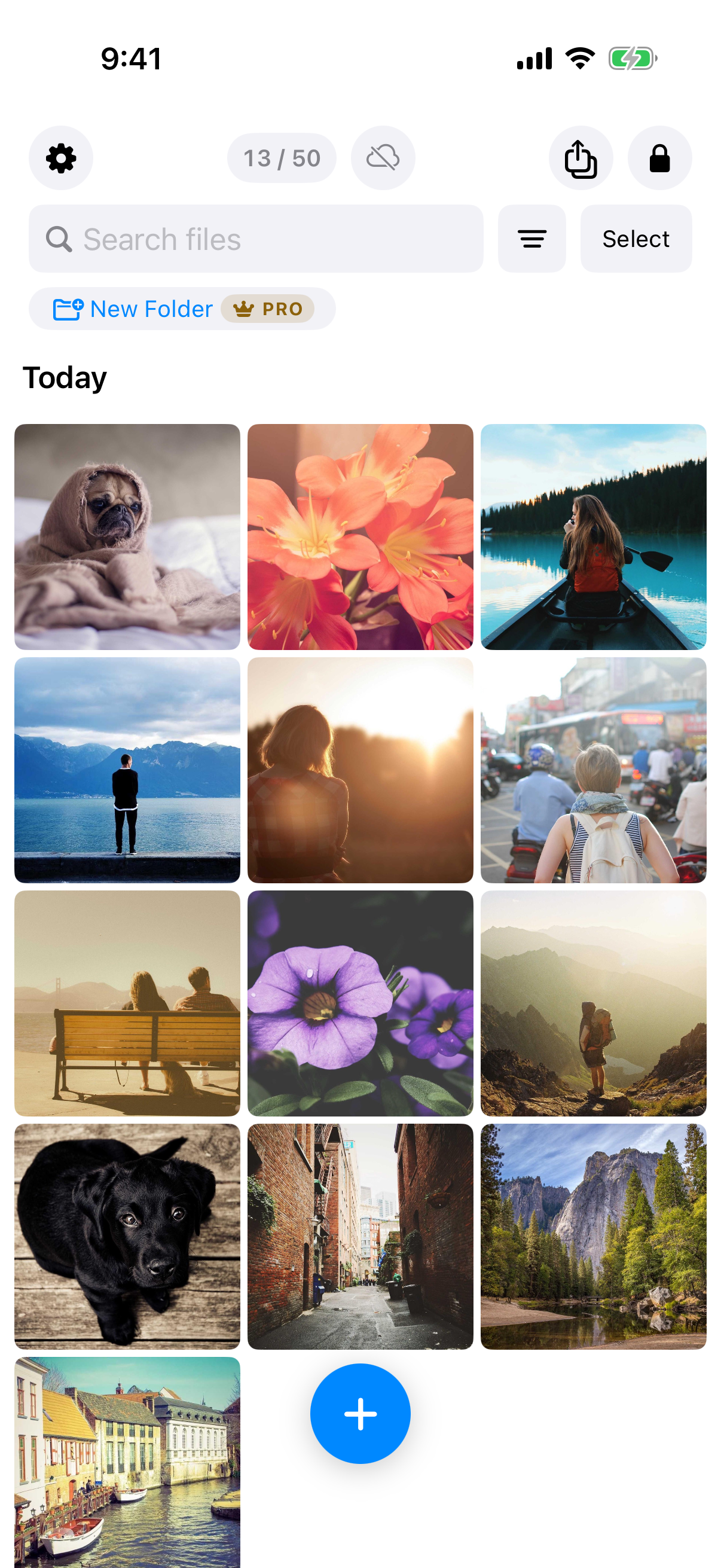 The per-vault file counter and the Pro badge on folders show the free tier's limits before you commit.
Free tier limits
The free tier allows up to 3 vaults and up to 50 files per vault. Folders are a Pro feature. Pro is sold as a monthly subscription, an annual subscription with a 7-day trial, or a one-time lifetime purchase. The Support page lists these limits. Storage is not unlimited on any tier.
The 12-word recovery phrase
Each vault has its own 12-word recovery phrase. If both the pattern and the phrase are lost, the vault cannot be opened. The wording on the Support page is direct: "we do not hold a copy, and there is no support process that can override this." Write the phrase down and keep it somewhere separate from the iPad.
Backup: enabling versus restoring
There is no Weave Vault vault-storage server. Encrypted backup copies the vault's ciphertext to your own iCloud or Google Drive. No vault key and no plaintext leaves the device. Nothing is uploaded by default.
The app is also excluded from ordinary device backup. A routine iCloud or Finder backup of the iPad does not contain it.
The split is exact. Enabling backup requires Pro. Restoring never does. Browsing and exporting your own files work without a subscription, including if Pro lapses.
Which option fits which situation
Use a plain rule. If you only want photos out of the grid, the built-in Hidden album does that. If you want files sealed with a key only you hold, use a vault.
When the Hidden album is enough
The Hidden album fits when the goal is tidiness. It costs nothing extra, it needs no new app, and the photos stay in Photos. It also fits when you do not want to manage a pattern or a recovery phrase.
When a vault is the better fit
A vault fits when the goal is a sealed file. The files are encrypted with AES-256-GCM under a key derived from your pattern. The tradeoffs are the ones listed above: a recovery phrase to keep, free tier limits, and originals you must delete yourself.
A shared iPad
On a shared iPad, a vault opens only with its pattern. Each pattern opens its own vault. To give someone a copy, use Secure sharing. Sharing sends a point-in-time copy of a whole vault, re-keyed from scratch each time. It has an enforced expiry and early revocation from Shared vaults in the vault's settings. Recipients do not need a vault of their own and do not need to pay.
To start, install Weave Vault from the App Store through the homepage. The full key description is on the Security page.