
Importing photos from an iPhone to a Mac is usually straightforward: plug in a cable, open Photos, and copy the files across. Most search results walk through exactly that, plus Image Capture, AirDrop, and iCloud Photos. Those methods are accurate. They're also incomplete for one specific case: some photos are never on the iPhone's Camera Roll to begin with, because an app such as Weave Vault wrote them straight into an encrypted vault at the moment they were captured. This guide covers the standard import paths in full, then explains that gap and the two distinct reasons a photo might be missing.
The standard ways to import photos from iPhone to Mac
Four methods cover almost every import scenario. Which one to use depends on whether the transfer is a one-time job, an ongoing sync, or something that shouldn't touch your Photos library at all.
Photos app over a cable
- Connect the iPhone to the Mac with a cable.
- Unlock the iPhone.
- Tap Trust This Computer if the prompt appears, then enter the iPhone's passcode.
- Open the Photos app on the Mac.
- Select the iPhone in the sidebar, under Devices.
- Choose which photos to import, then click Import Selected or Import All New Photos.
This is the default path for most people, and it works whether or not iCloud Photos is turned on.
Image Capture (the built-in utility most people skip)
macOS ships with a second import tool that most users never open: Image Capture. It lives in Applications > Utilities, and instead of adding photos to the Photos library, it copies them straight to a folder you choose — useful if you don't want a Photos library at all, or you're pulling files together for a specific project.
- Open Applications > Utilities > Image Capture.
- Select the iPhone from the device list on the left.
- Choose a destination folder from the "Import To" menu.
- Click Import for a single photo, or Import All.
AirDrop for a handful of photos
AirDrop is the fastest option for a small batch, and it skips the cable entirely. Open Photos on the iPhone, select the photos to send, tap Share, choose AirDrop, then tap the Mac's name. Both devices need Wi-Fi and Bluetooth turned on, and the Mac needs to be within range with AirDrop set to accept from everyone or from contacts.
iCloud Photos for automatic, ongoing sync
Turning on iCloud Photos on both devices keeps both libraries in sync without any manual import step. New photos taken on the iPhone appear on the Mac automatically, and the reverse is also true. The trade-off: it consumes iCloud storage, and it isn't a one-time transfer — it's a standing sync relationship between the two devices for as long as it stays on.
Apple has changed parts of this interface across macOS and iOS releases, including where the Trust prompt appears and how the Photos sidebar is laid out. If a step above doesn't match what you see, check which macOS and iOS versions your devices are currently running before assuming something's broken.
Why some photos never show up when you import
All four methods above have one thing in common: they read from the iPhone's Camera Roll. If a photo was never written to the Camera Roll, none of them will find it — not Photos, not Image Capture, not AirDrop's photo picker, not iCloud Photos. This isn't a bug in any of those tools. It's a structural gap, and it shows up in two distinct ways.
Photos taken with a secure camera never touch the Camera Roll
Some vault apps include their own in-app camera. Weave Vault's secure camera is one example: it encrypts a capture the moment the shutter fires and writes it directly into the vault. The product's own description of the feature is explicit about this: "Capture straight into the vault, never through your photo library." A photo taken this way was never in the Camera Roll. There is nothing for the Photos app, Image Capture, AirDrop's photo picker, or iCloud Photos to import, because the file never existed outside the vault.
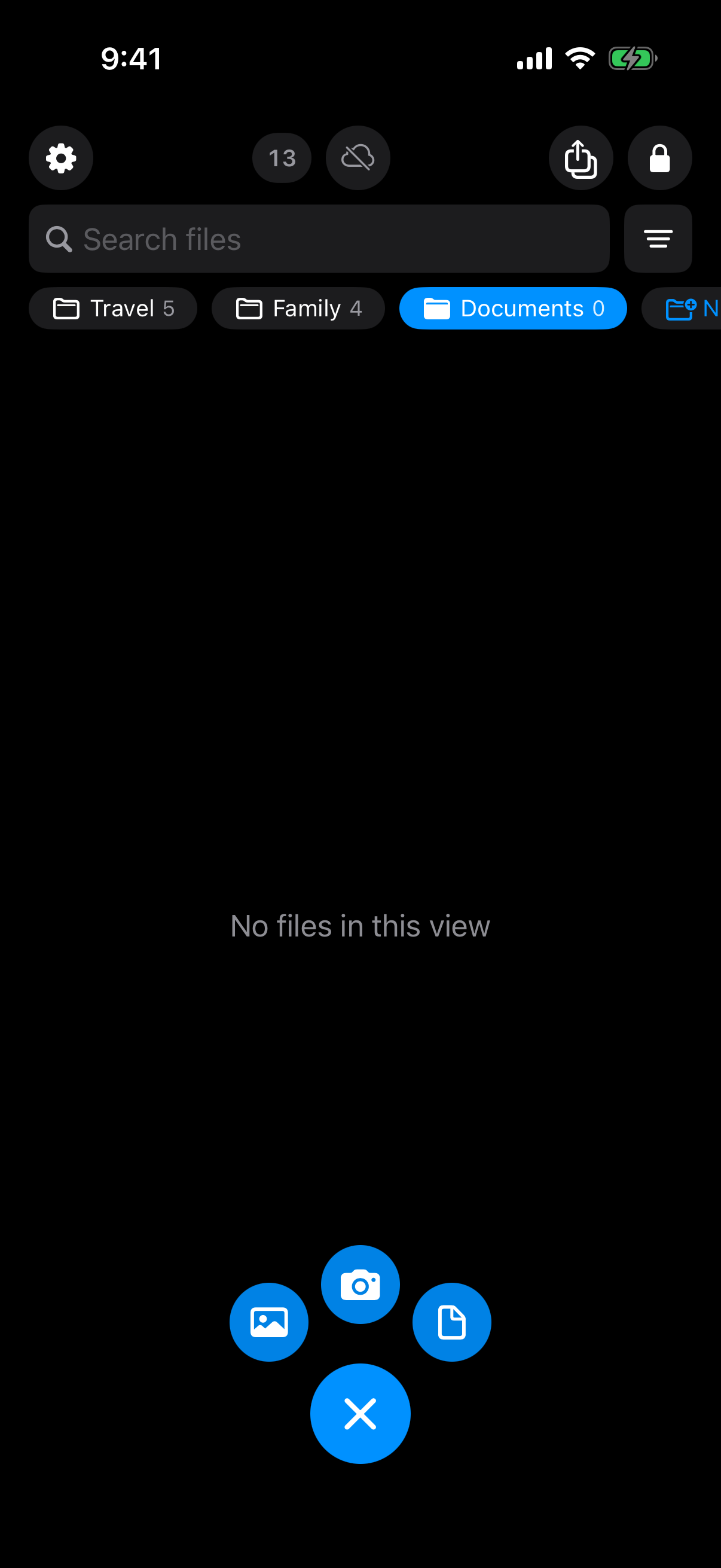
The add menu inside a vault includes the in-app camera, which captures straight into the vault.
Photos you added to a vault after the fact are a different case
This is a separate failure mode, and it's worth telling apart from the one above because the fix is different. If you took a photo normally and moved it into a vault afterward, the app creates an encrypted copy inside the vault — but the original file stays in the Camera Roll, untouched, unless you delete it yourself. Weave Vault's own support guidance is explicit on this point: the original has to be removed manually, and that includes emptying the Recently Deleted album, or it will still turn up in a normal Mac import weeks later.
So there are two questions worth asking when a photo is missing: was this photo ever on my phone's Camera Roll, or did I secure a copy and forget to delete the original? The first case means the file genuinely isn't reachable through Photos, Image Capture, AirDrop, or iCloud Photos — it only exists inside the vault. The second means the original is probably still sitting in Recently Deleted, waiting to be emptied.

When you add from Photos, the original stays in your library until you delete it there, and Recently Deleted keeps it about 30 days.
What actually protects a photo once it's inside an encrypted vault
Once a photo is inside a vault, two separate mechanisms do the work: one encrypts the file, and one derives the key that unlocks it. Naming both precisely matters more than describing what they do in the abstract.
The encryption mechanism, named precisely
Weave Vault seals files with AES-256-GCM. Each file gets a fresh, randomly generated 96-bit nonce and a 128-bit authentication tag, so no two encrypted files share a nonce, and any tampering with the ciphertext is detectable on decryption. This is a documented, standard authenticated-encryption construction — not a proprietary scheme, and not what marketing copy elsewhere calls "military-grade encryption."
How the vault is unlocked
The unlock pattern itself never encrypts a file directly. It's run through Argon2id — using the RFC 9106 parameters t=3, m=64 MiB, p=1, over a 128-bit salt — to derive a key-encryption key. That derived key wraps a random 256-bit per-vault content key, generated by a cryptographically secure random number generator (CSRNG), which is the key that actually encrypts file contents. The Argon2id-derived key never touches file contents directly; it only ever wraps the content key. The pattern is never written to disk — not to a file, not to the Keychain — and there's no separate passphrase to fall back on. The pattern is the only unlock mechanism. Full parameters are documented on Weave Vault's security page.
Getting vault photos onto a Mac isn't the same problem
Everything above explains why a vault photo won't appear during a standard import. It doesn't answer the separate question of how to get a vault's contents onto a Mac at all — and the answer is narrower than most people expect.
There is no Mac app
Weave Vault runs on iPhone, iPad (iOS 16 and later), and Android. There is no Mac, Windows, or web app. None of the import methods in the first section — Photos app, Image Capture, AirDrop, iCloud Photos — apply to files that are still inside a vault, because there's no Mac client to open the vault and no vault folder for Image Capture or Photos to read from.
What sharing a vault actually sends
Two features move vault contents off the phone, and neither is a Mac-Photos-style import. Secure sharing sends a point-in-time copy of an entire vault, re-keyed from scratch for that share, with an enforced expiry and revocation available from the vault's settings at any point afterward. The recipient doesn't need a Weave Vault account of their own, or a Pro subscription, to open it.
Encrypted backup works differently: it copies the vault's ciphertext to the user's own iCloud or Google Drive, not to a Weave Vault server. No vault key and no plaintext content ever leaves the device — iCloud or Google Drive only ever stores encrypted bytes it can't read. Turning backup on requires a Pro subscription; restoring from an existing backup doesn't, and browsing or exporting your own files keeps working without a subscription even if Pro lapses.
Neither feature is a single-photo export, and there's no AirDrop-style flow from inside a vault straight to a Mac — that isn't a documented capability of the app.
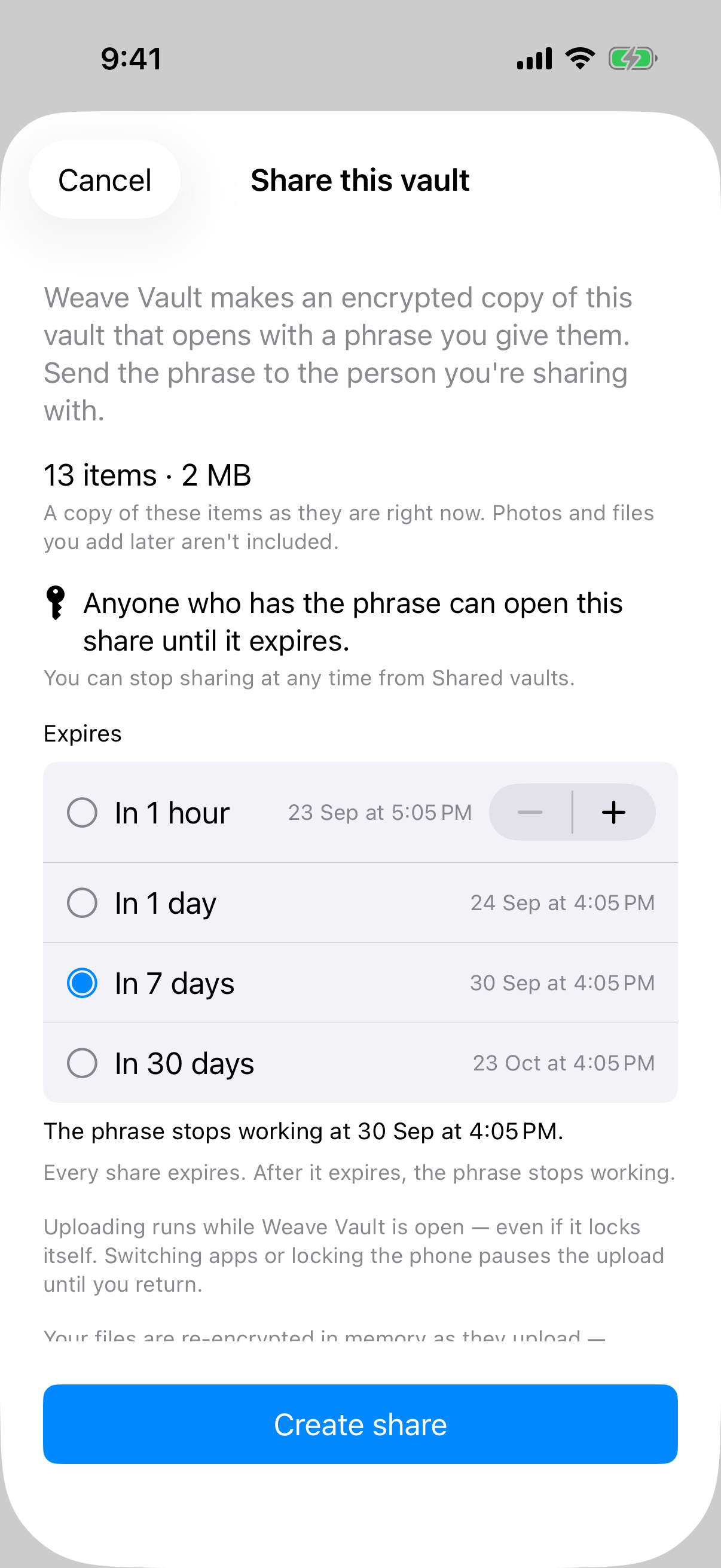
A share is an encrypted copy of the vault as it is now, opened with a phrase you send, and it always expires.
Common questions about importing iPhone photos to a Mac
Why is Photos on my Mac not showing new photos?
Rule out the ordinary causes first. iCloud Photos can take time to finish syncing, especially over a slow connection or with a large library. The cable-based Trust This Computer prompt is easy to miss or dismiss by accident, which stops an import before it starts. Low storage on the Mac can also silently block new imports. If none of those explain a missing photo, it's worth checking whether the photo was ever in the Camera Roll at all — see the vault-specific causes above.
Does deleting a photo on my iPhone remove it from my Mac?
If iCloud Photos is on for both devices, yes: it's a synced library, so a deletion on one device propagates to the other once it syncs, and the photo also lands in Recently Deleted on both for a grace period before permanent removal. If you imported a photo manually with the Photos app, Image Capture, or AirDrop, deleting the source file on the iPhone afterward has no effect on the copy already on the Mac. At that point they're two separate files.
Free vault space vs. Pro — what's the actual split?
Weave Vault's free tier covers up to 3 vaults and up to 50 files per vault — not unlimited storage in either dimension. Beyond that, Pro is what expands the account: more vaults, encrypted backup, sharing, and folders. As the product's own manifesto puts it, "Pro opens doors: more vaults, encrypted backup, sharing, folders."