Type "how to lock apps on iPhone" into search and most results either walk you through Screen Time as if it were a passcode prompt on the Notes app, or list a dozen App Store "app lockers" without explaining what any of them actually do. Neither is accurate. iOS has never shipped a way to put a password on a single, already-installed app, and no third-party app can add one either — that's not a gap someone forgot to fill, it's how the operating system is built. This piece covers the two real native tools, where each one stops short, and — because the actual problem underneath most searches like this one is protecting specific content rather than gating an icon — the cryptographic mechanism behind one way to do that.
Why iPhone doesn't let you lock individual apps
Search results conflate two different Settings panels that were never designed to do what this query implies. Neither adds a lock screen to an individual app.
Screen Time restrictions are not a per-app password prompt
Settings > Screen Time > Content & Privacy Restrictions controls what can be installed, purchased, or viewed, based on content ratings. It's built for parental controls: block adult content, restrict in-app purchases, cap what age rating an app can carry. It does not add a passcode prompt when someone opens an app that's already on the home screen. A phone with Content & Privacy Restrictions turned on, and Notes already installed, opens Notes the same way it always has — no prompt, no gate.
Guided Access locks the whole device into one app, not selected apps
Settings > Accessibility > Guided Access does close to the opposite of what most people picture. Turn it on inside an app, and a triple-click of the side button locks the phone into that single app until the same triple-click and a passcode release it. It's built for kiosk displays, museum exhibits, or handing a phone to a child for one game without them backing out into Messages. It doesn't hide or protect other apps — it prevents leaving the one app you started it in.
iOS has never shipped a system-wide 'Face ID to open this app' feature
There's no Settings toggle that requires Face ID or Touch ID to open a chosen app, the way Android's per-app lock or work-profile controls do. Apple has not added one across any iOS version to date. The two tools above are the closest native equivalents, and neither does the job this search query implies. Menu names and exact paths shift periodically as Apple reorganizes Settings; the general Screen Time / Accessibility structure described here has been stable across recent iOS versions, but it's worth a quick check against whatever iOS version you're running before following these steps.
The workarounds people try, and where each falls short
None of the three common workarounds below solve the actual problem. Each is worth naming so you can recognize why it disappoints.
Shortcuts automations that trigger Guided Access
Some guides describe chaining the Shortcuts app to an automation that fires Guided Access when a chosen app opens, approximating a lock on that one app. Treat this as a workaround users have stacked out of two features Apple never designed to work together — not as a supported iOS capability. Automations like this depend on Shortcuts triggers and permissions Apple has changed before and can change again; an automation that works on one iOS version isn't guaranteed to survive the next update.
Using the Screen Time passcode as a blunt instrument
Setting a Screen Time passcode does gate one thing: deleting or reinstalling an app requires that passcode if Content & Privacy Restrictions is configured to protect it. It does not gate opening an app that's already sitting on the home screen. It doesn't solve the actual scenario most people searching this term are worried about — someone else picking up an already-unlocked phone and tapping into Notes, Photos, or Messages.
Third-party 'app locker' utilities
iOS sandboxes every app from every other app. A third-party app cannot intercept another app's launch and insert a password prompt in front of it, the way an Android accessibility-service app locker can hook into the system launcher. That's an architectural limit, not a missing feature some app hasn't gotten around to building. Because of it, most App Store results that market themselves as "app lockers" are actually something else: vaults for specific photos, videos, or documents, wearing app-locker marketing copy because that's what people search for. Read the App Store description closely on many of these listings and the actual feature list describes an import-and-encrypt flow for chosen files, not a way to gate Messages or Notes at the icon level — the marketing name promises the thing iOS blocks, and the actual product does something adjacent instead.
What people usually mean by 'lock an app' - and what actually fixes it
The workarounds above fail for a structural reason: they're aimed at the wrong layer.
The real target is usually specific content, not the whole app
Almost nobody actually wants to restrict how many times the Notes app can be opened. What they want is for certain photos, certain documents, or certain notes to be unreadable to whoever is holding the unlocked phone — a partner, a coworker, a kid who grabbed it to watch a video. That's a data problem, not an app-icon problem.
Protecting the data instead of the app icon
An encrypted vault addresses that layer directly. Instead of trying to gate an app's launch — the thing iOS won't let any third party do — it encrypts the content itself, so the protection travels with the files regardless of what app opens next, or whether iOS exposes any per-app lock at all. Move a file out of the vault and it's exposed; leave it inside and it's ciphertext on disk, unreadable without the derived key, independent of whatever Settings toggles are or aren't configured elsewhere on the phone.
Weave Vault is one implementation of this approach, described in full on its security page. It supports multiple vaults rather than one shared space, and unlocks each with a pattern instead of Face ID, Touch ID, or a typed passcode.
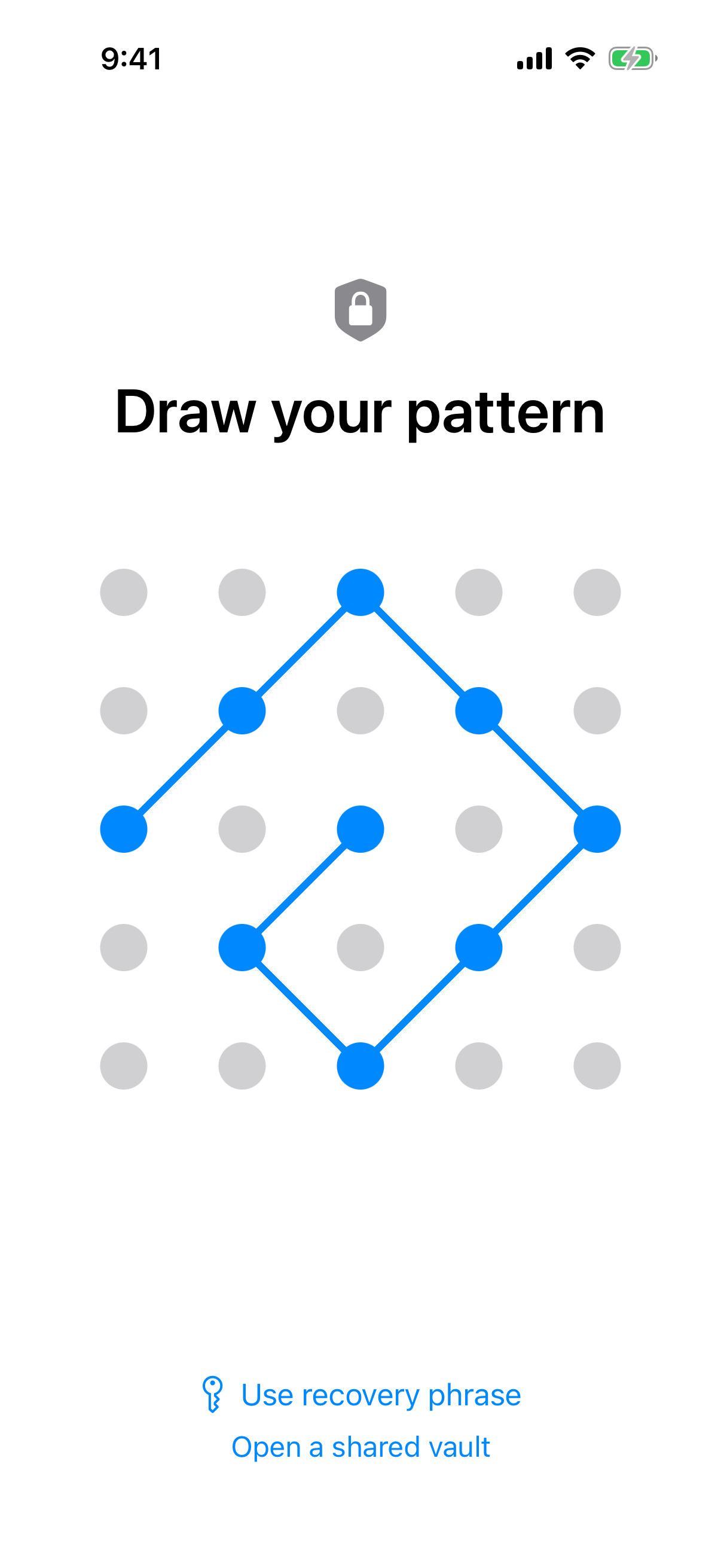
Each vault opens with a pattern drawn on a 5x5 grid.
The key hierarchy behind a pattern-based vault lock
Weave Vault's unlock credential is a pattern — there's no separate password to also remember or lose. The pattern is run through Argon2id (RFC 9106, with parameters t=3, m=64 MiB, p=1, and a 128-bit salt) to derive a key-encryption key. That derived key wraps a random 256-bit per-vault content key, generated by a CSRNG, a cryptographically secure random number generator. The Argon2id output itself never touches file contents directly — only the key that protects them.
Files are sealed with AES-256-GCM, using a fresh random 96-bit nonce and a 128-bit authentication tag per file. Per-item subkeys are derived with HKDF-SHA256 (RFC 5869), so no two files share key material. Large files are chunked, with each chunk independently authenticated, up to a 16 GB per-file ceiling.
What happens when someone tries to guess their way in
The mechanism above has a specific, deliberate failure mode.
A wrong pattern doesn't show an error - it opens an empty vault
An unrecognized pattern doesn't throw an "incorrect password" error. It opens a fresh, empty vault instead. To someone guessing, a wrong attempt looks identical to there being nothing there — not like access was denied.
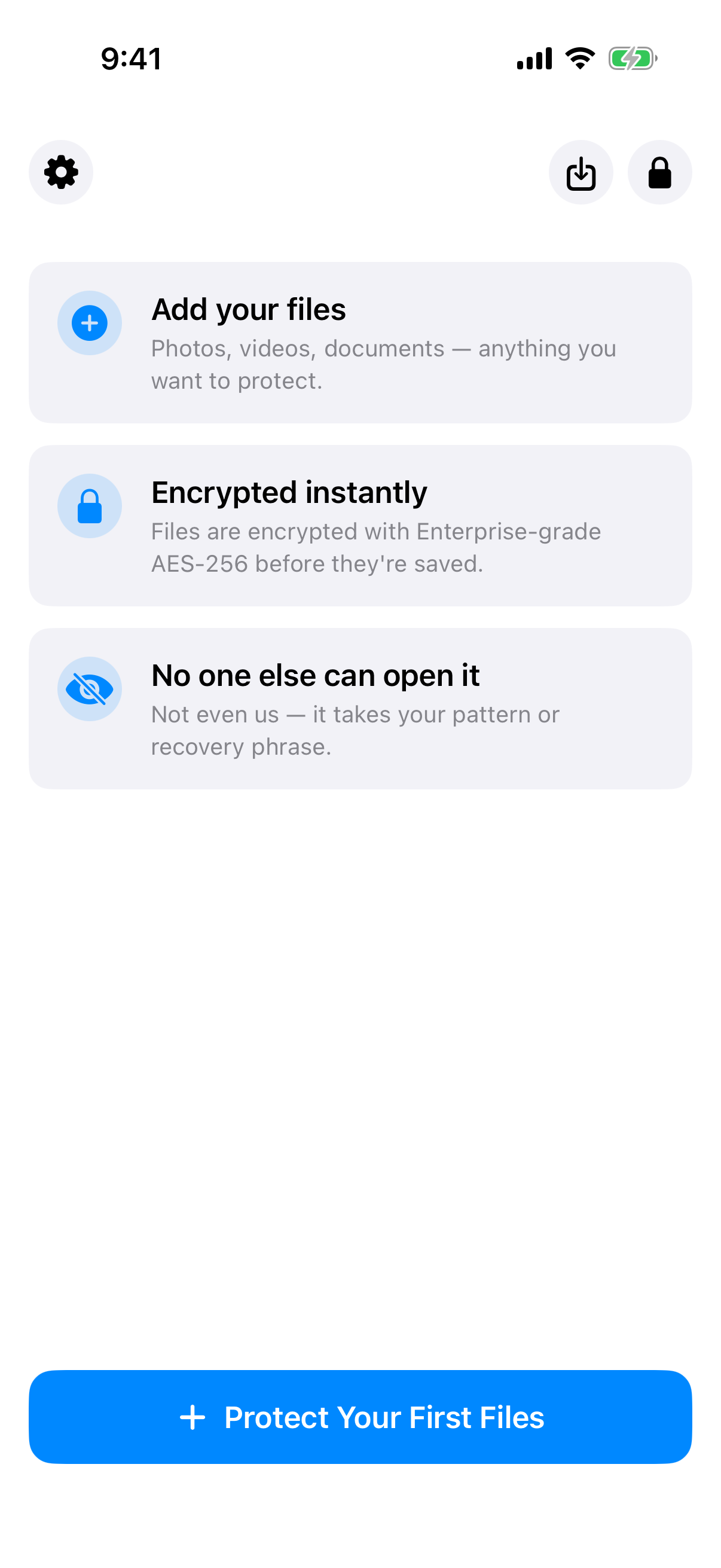
A pattern with no files behind it simply opens an empty vault like this one.
There's no vault list or switcher to reveal what exists
Weave Vault keeps no on-screen vault list, switcher, or count. Someone holding the unlocked phone with the app open has no UI element telling them how many vaults exist, or how much content sits behind other patterns. This is related to, but distinct from, the app's duress mode, built for the same underlying scenario: being pressured to unlock in front of someone.
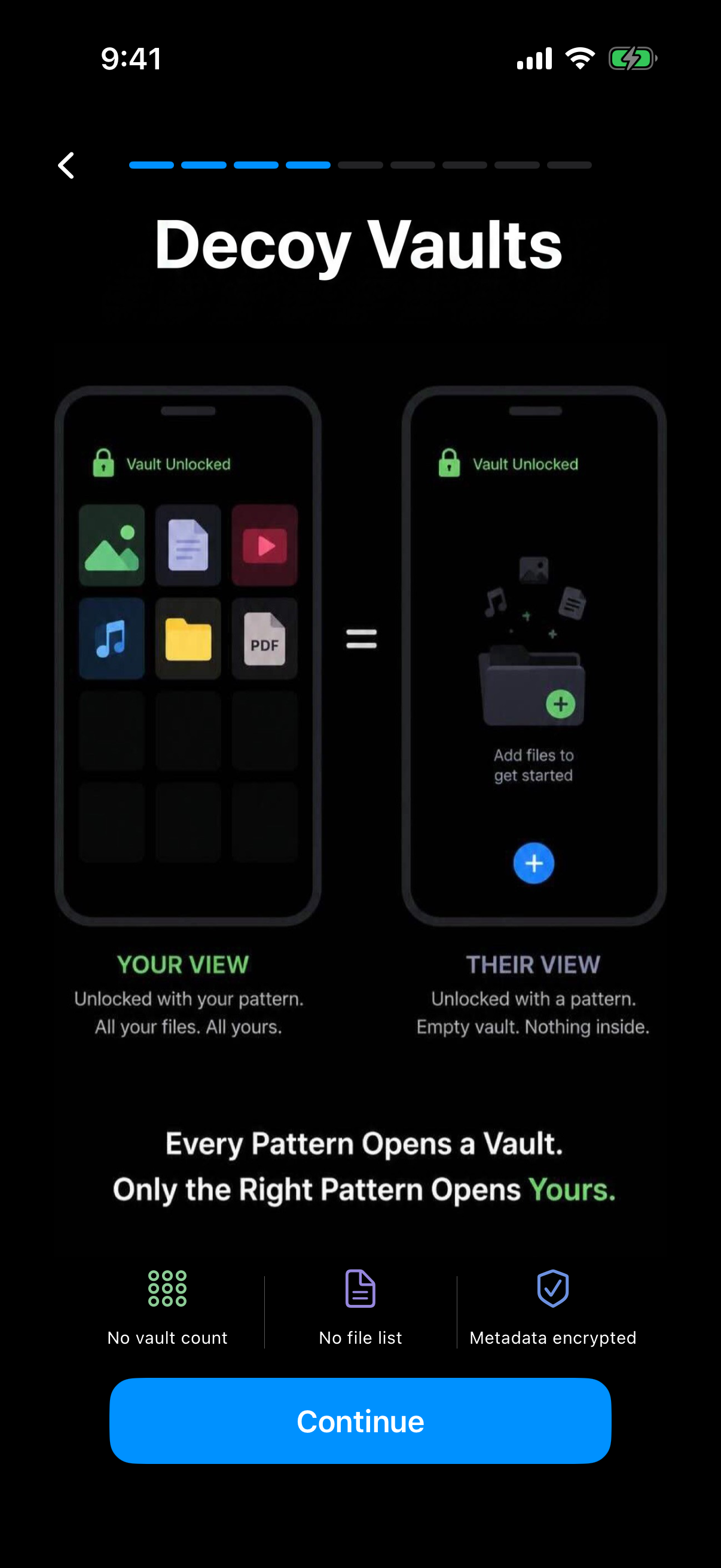
Every pattern opens a vault, and the app shows no vault count or file list to anyone else.
The honest limit on what this claims to protect against
None of this is framed as a guarantee against forensic recovery. Weave Vault's own position, stated verbatim: "We make no claim about what an examiner with the physical device could or could not determine." That's a deliberate hedge, not a marketing gap to read around — the design goal is making a casual glance or a guessed pattern reveal nothing, not defeating a forensic lab.
One more detail matters for that same reason: the pattern itself is never written to disk. Not to a file, not to the Keychain.
Setting up a locked vault on iPhone: cost, limits, and recovery
The practical questions — what it costs, what happens if you forget the pattern, whether it needs an account — matter as much as the cryptography. A key hierarchy that's sound on paper is only useful if the surrounding product doesn't force a tradeoff you didn't sign up for, like requiring a subscription just to see files you already stored.
Free vs. Pro: what each tier actually includes
The free tier supports up to 3 vaults, with up to 50 files per vault. There's no published unlimited-storage tier at any price. Pro removes those caps and, per the product's own manifesto, adds "more vaults, encrypted backup, sharing, folders." It's sold as a monthly subscription, an annual subscription with a 7-day trial, or a one-time lifetime purchase.
Enabling encrypted backup requires Pro. Restoring from a backup you already made does not. Browsing and exporting your own files works without any subscription at all, including after a Pro trial or subscription lapses — that's a real split, not "backup is free" or "backup is paid" collapsed into one line.
The 12-word recovery phrase is the only backup for a forgotten pattern
Each vault gets its own 12-word recovery phrase, generated at creation. If both the pattern and that phrase are lost, Weave Vault's support page states the policy plainly: "we do not hold a copy, and there is no support process that can override this." There's no account-recovery flow behind it, because there's no account to recover from.
No account, no email - just the App Store
There's no account of any kind, on free or Pro — no email, no profile, no sign-up. The app runs on iPhone and iPad (iOS 16 and later) and on Android. There's no Windows, Mac, or web app, and no web-based signup: the only call to action is the App Store or Google Play listing, reached from the homepage.